 Petal Home
Home / Blog / School Dates, Clubs and Family Plans in One Calendar
School Dates, Clubs and Family Plans in One Calendar

School dates arrive in one place, clubs in another, work in a third, and the family's own plans in your head. Each is easy to manage on its own. The trouble is that a week depends on all of them at once, and the clash only shows up when it's too late. A single calendar that everyone can see, built in a sensible order, makes those clashes much easier to spot. This is a simple way to set one up, then keep it useful with a short weekly check.
The quick answer
- Start with the fixed dates: term dates, training days, holidays and the events already in the diary
- Add the weekly routines once, as repeating plans, with an end date
- Add work and family plans, and say who each one is for
- Decide what's shared and what's private before you add much more
- Do one short check each week, and let the calendar do the remembering
This guide is about how to build the calendar. If you're after forms, payments and permission slips, our school admin guide covers those, and the US November closures have their own calendar reset.
1. Start with the fixed dates
Begin with the things that don't move: term start and end dates, half terms or breaks, training or in-service days, and any events the school has already announced. Take them from your school's own calendar or website rather than from memory, because dates differ between schools and districts, and even between children in the same family. If you have more than one child, check each school separately.
Put each date on the shared calendar as a plan, using an all-day plan for days off and a timed plan for events. In Petal Home, typing plans in is free, and each plan can say who it's for, has a location and a note, and can have more than one reminder before it, like the day before and an hour before. Everyone in the household sees the same calendar.
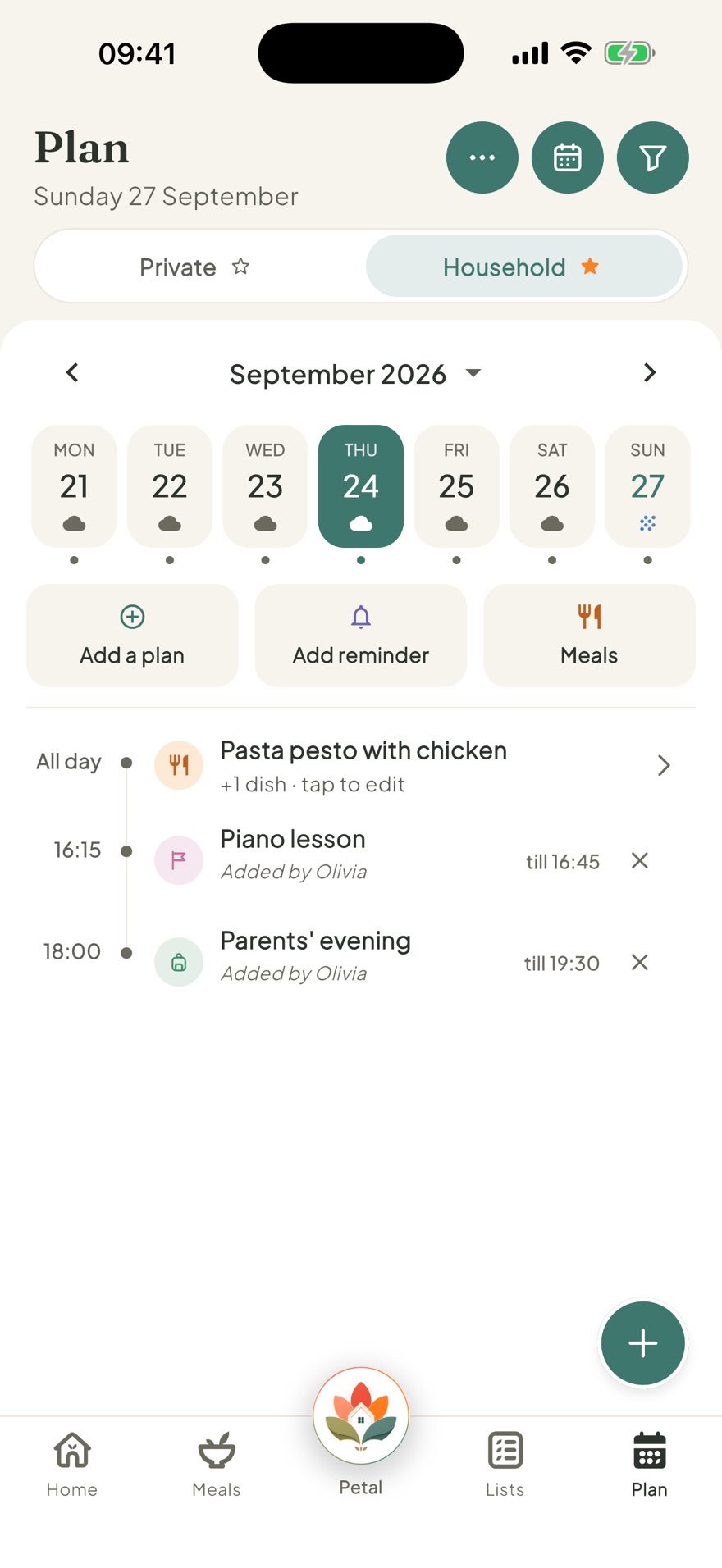
If your school publishes its dates as a calendar link, Petal Home can bring it in for you. Importing a calendar link is a Premium feature, and it refreshes when you open the app. If you'd rather not import one, typing the dates in yourself is free and works well for dates you're happy to maintain by hand.
2. Add the weekly routines once
Clubs, lessons and matches repeat, so add them once rather than week by week. Each needs the day, the time, the place, and anything to bring: kit, a bag or a form. In Petal Home, a plan can repeat on the days you choose, like every Tuesday and Thursday. You can set an end date, such as the end of term or the end of the season, so the repeats stop when the activity does. There's no built-in "term time only" setting, so use an end date for the end of the term or season, and update or skip individual dates when a holiday or break interrupts the routine.
- School-week routines: PE and swimming days, library day, and any regular early or late finishes
- Clubs and lessons: the day, start and finish, and who's taking and collecting
- Regular family routines: the weekly shop, the grandparents' visit, the Sunday check
When a club ends or changes day, edit the plan and its end date, rather than deleting the whole thing and starting again.
3. Add work and family plans, and say who each is for
Now add the plans that make the week complicated: shifts and late meetings, appointments, birthdays, visitors and trips. The important habit is to say who each plan is for, so the calendar can answer "who's where on Thursday?" at a glance. For plans that need an adult to take or collect a child, say so in the note or in your weekly check. If you'd like to see one person's week on its own, Premium lets you filter the calendar to one person.
If your work calendar lives in Google, Outlook or Apple Calendar, Petal Home can sync with it as a Premium feature, so your work commitments appear alongside the family's without typing them twice.
4. Decide what's shared and what's private
A shared calendar works best when everyone knows what appears on it. A simple split is:
- Shared with the household: school dates, clubs, family plans, anything that changes who's needed where
- Private: an adult's own appointments, surprises and anything personal
In Petal Home, a plan can be shared with the household or kept private to the person who made it. Older children can have their own accounts, and a household admin can choose what they can see and change.
5. The five-minute weekly check
The calendar only helps if it's right, so give it a short check each week. Sunday evening works well for many families:
- Look at the week ahead: anything unexpected, and anything that clashes
- Sort the gaps: who's collecting, who's cooking, who needs a lift
- Add anything new: the letter in the bag, the message from the club
- Check next week too: one glance ahead catches the things that need booking early
The Home screen in Petal Home has a calendar card that shows the next few days of plans, and you can switch it to 7 days to see the week ahead, which makes this check quick. Our Sunday reset turns it into a twenty-minute routine.
Don't aim for a perfect calendar on day one. Start with the fixed dates and this week's routines, then add more as things come up. A calendar that's mostly right and used every week beats a perfect one nobody opens.
Frequently asked questions
How do I put school dates on a family calendar?
Take the dates from your school's own calendar, then add term dates, breaks, training days and events as plans. Use all-day plans for days off and timed plans for events, and say who each one is for.
How do I add clubs and activities that repeat every week?
Add each one once as a repeating plan on the days it happens, with the time, place and anything to bring. Set an end date, such as the end of term, so the repeats stop when the activity does.
Can Petal Home import my school's calendar?
With Premium, you can import a calendar link, such as one a school or club publishes, and it refreshes when you open the app. Typing dates in yourself is free.
Can I see just one person's plans?
With Premium, you can filter the calendar to one person. Every plan can say who it's for, and everyone in the household sees the shared calendar.
Can I keep some plans private?
Yes. A plan can be shared with the household or kept private to the person who made it.
One calm place for the whole family
Petal Home is being built to help families keep meals, lists, calendars and reminders in one calm shared space. If that sounds useful for your household, you can join the waitlist and we'll let you know when it launches.
Join the waitlist