 Petal Home
Help centre › Add a school, club or team calendar
Add a school, club or team calendar
Many schools, clubs and teams publish a calendar link. Paste it into Petal Home to see those dates on your Plan.
Before you start
Adding a calendar from a link is part of Premium, and you need to be able to edit the Plan.
1Step 1 of 4
Find the link
On the school's, club's or team's website, look for "Subscribe", "iCal", "ICS" or "Add to calendar", and copy the link.
2Step 2 of 4
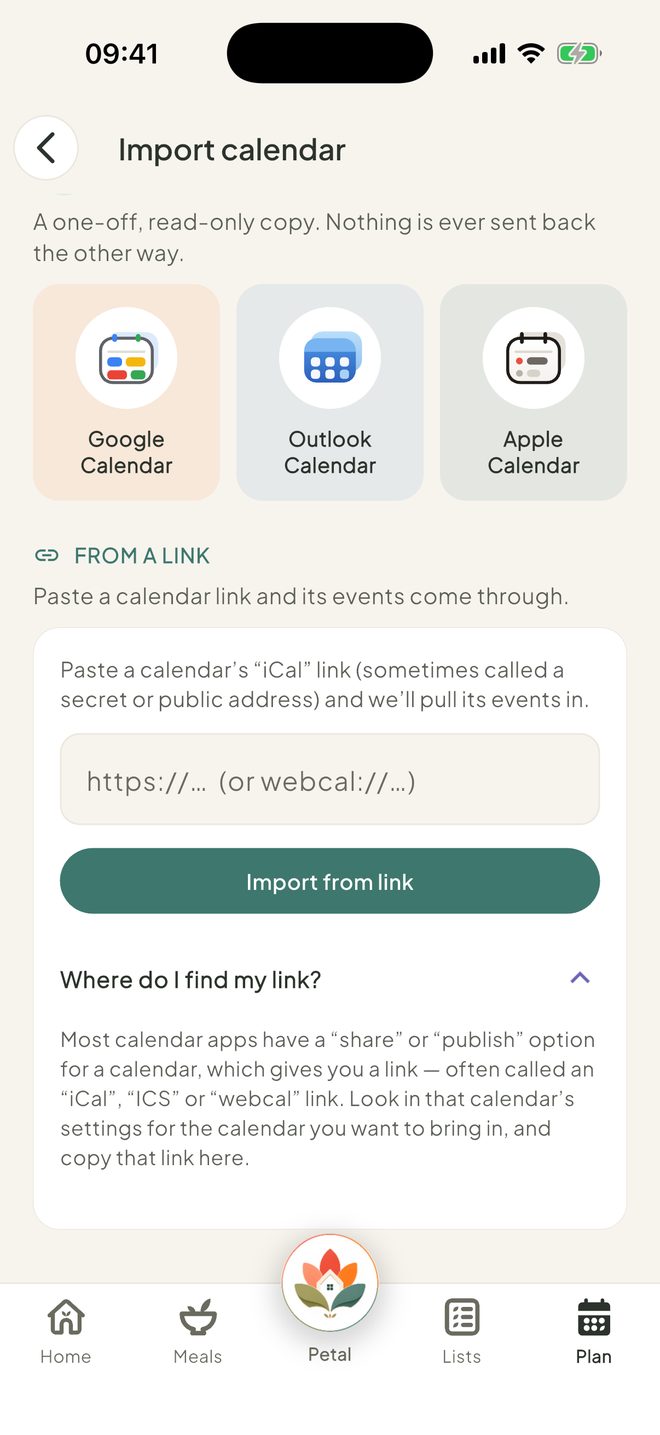
Open Import a calendar
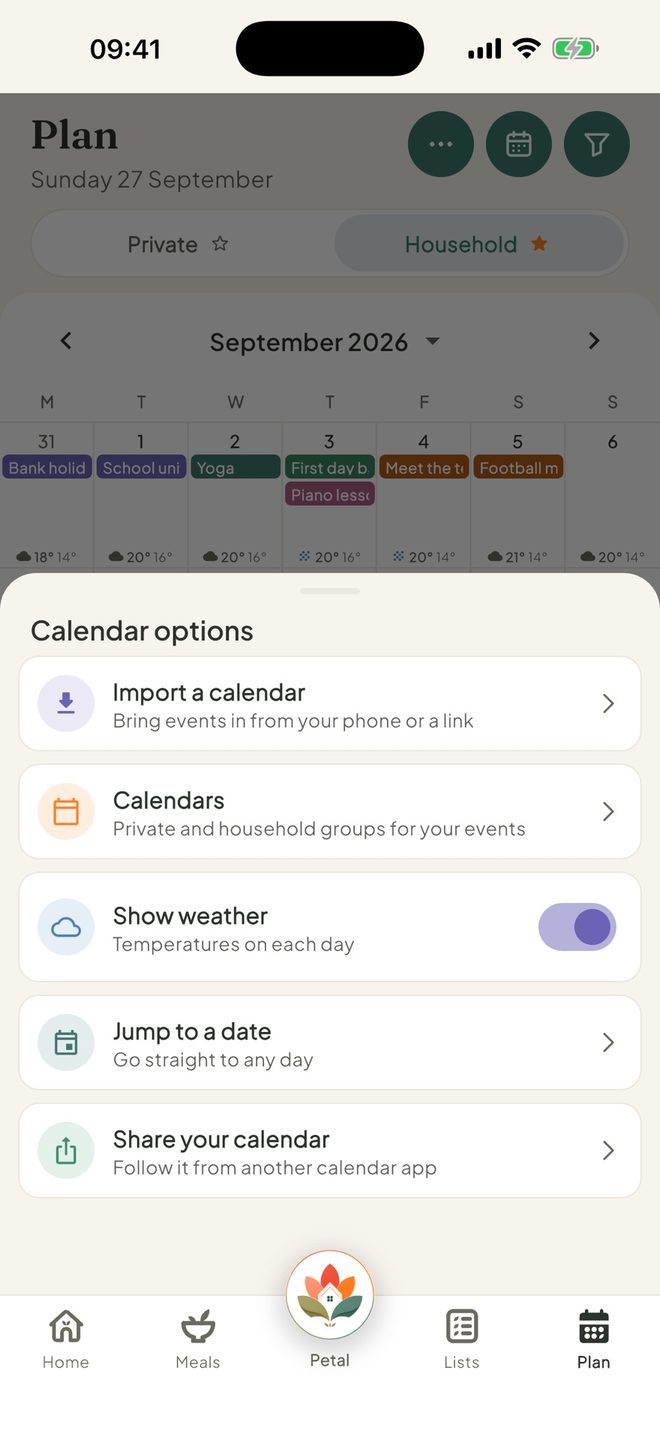
Open Plan, tap the round ⋯ button at the top right, then Import a calendar.
3Step 3 of 4
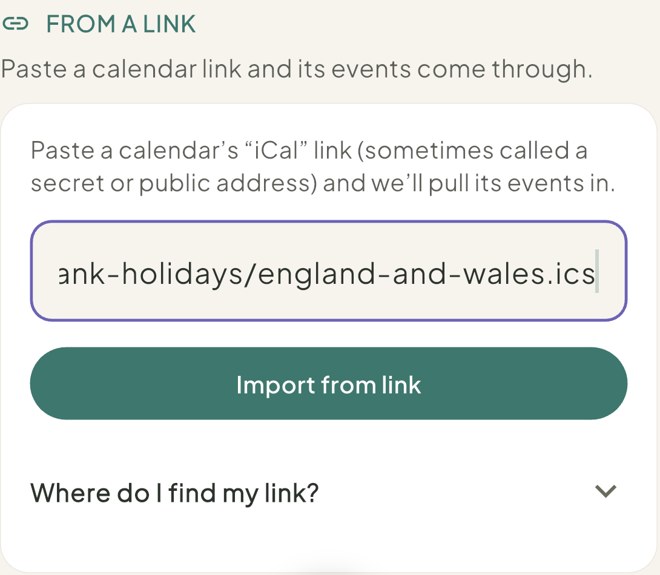
Paste it under From a link
Scroll down to From a link. Paste the link and tap Import from link.
4Step 4 of 4
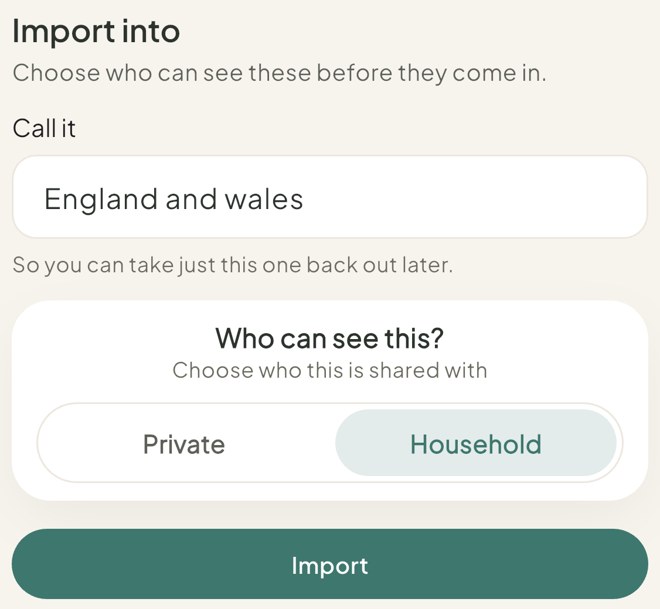
Name it and choose who sees it
On Import into, check the name under Call it, choose Private or Household under Who can see this?, then tap Import. A message tells you how many events were added.
Good to know
- Petal Home checks for updates once a day when the person who added the calendar opens the app.
- If the calendar uses repeating events, Petal Home adds the first date only.
- To remove it, the person who added it opens Import calendar, taps the round ⋯ beside it, then Remove.
- Once added, it shows under Brought in once, with a Refresh button, and only the person who added it sees it there. Links that start with webcal:// work too.
- The daily check needs Premium and an internet connection. If events are removed from the school's calendar, they disappear here after you tap Refresh.
- Anyone who can edit Plan can choose Household for it, not only admins.
Keep going
Still stuck?
Email hello@petalhome.app and we'll help.