 Petal Home
Help centre › Connect Google, Outlook or Apple Calendar
Connect Google, Outlook or Apple Calendar
Connect Google, Outlook or Apple Calendar, then choose which calendars you want to bring into Petal Home.
Connecting calendars is part of Premium. You can connect one Google, Outlook or Apple account at a time. You also need to be able to edit the Plan. Apple Calendar is on iPhone and iPad only.
Open Calendar options
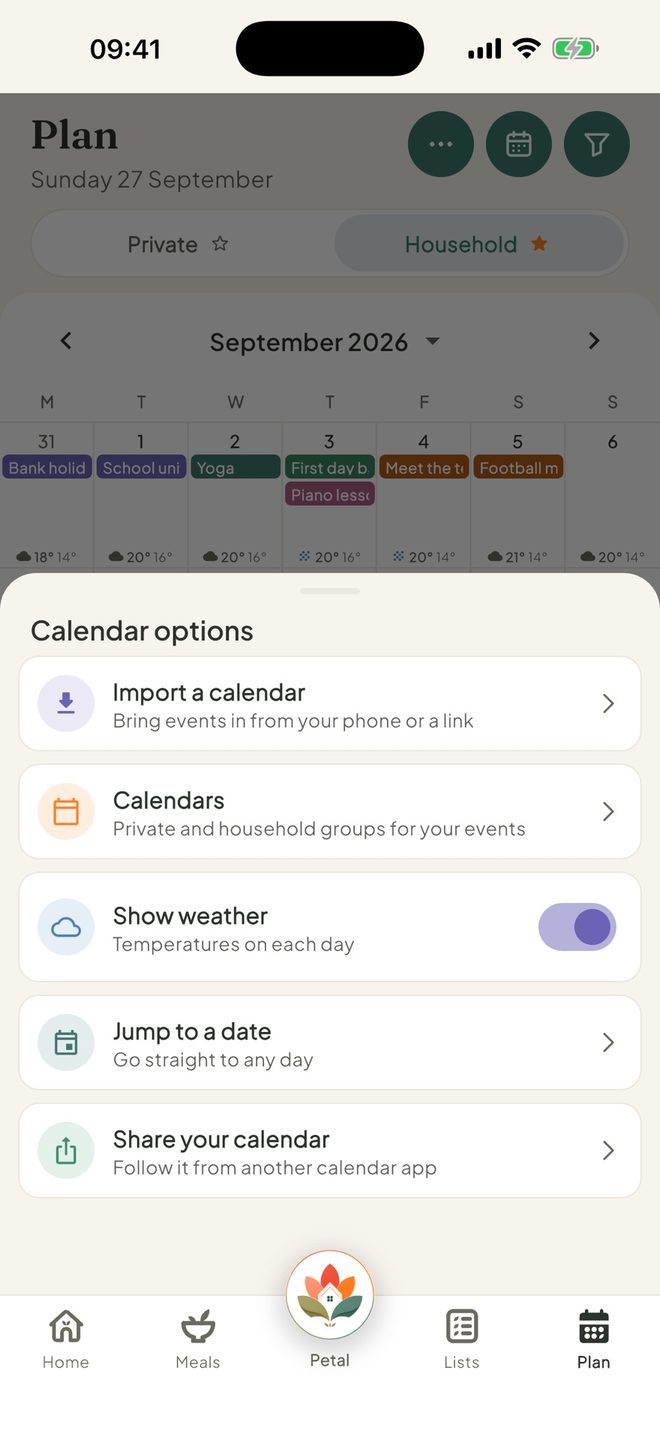
Open Plan and tap the round ⋯ button at the top right. This opens Calendar options. Tap Import a calendar.
Choose your calendar
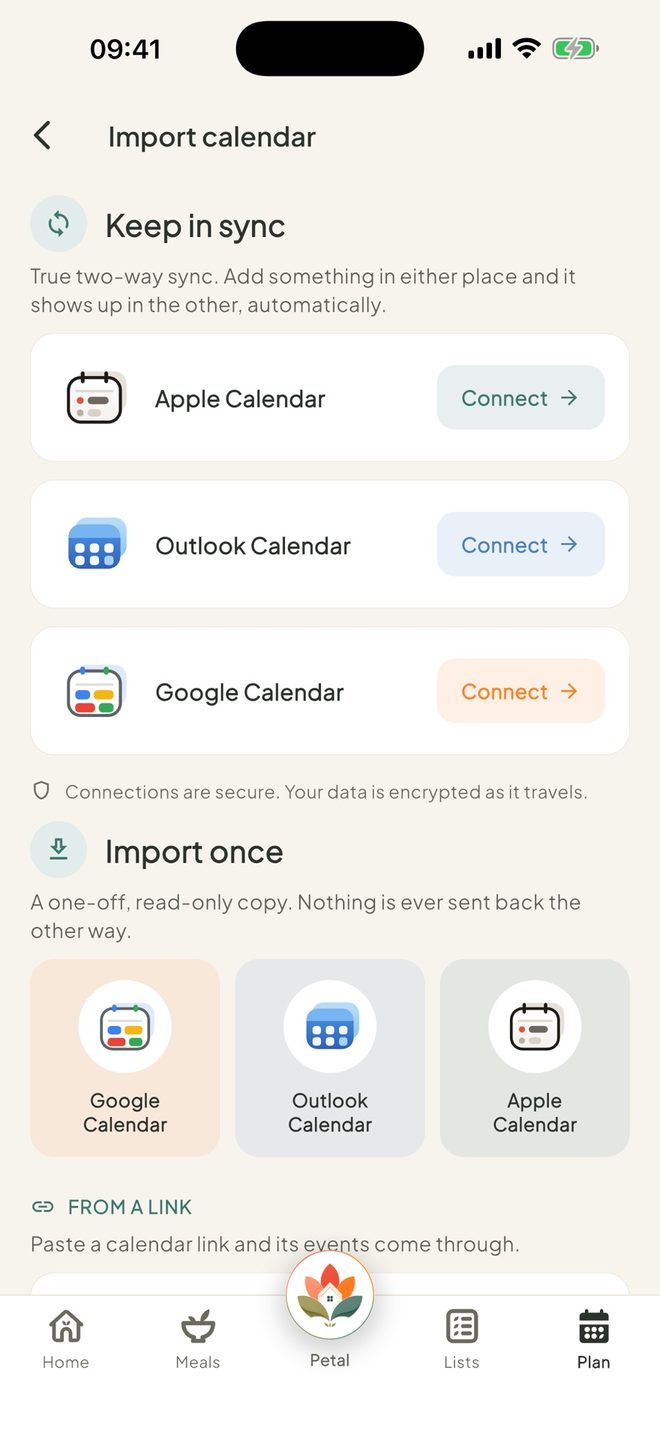
Under Keep in sync, tap Connect on Apple Calendar, Outlook Calendar or Google Calendar.
Sign in and allow access
For Google, sign in and allow access to your calendar. For Outlook, sign in with your Microsoft account. On Android, Microsoft's sign-in opens in your browser. For Apple, allow full access when your iPhone asks.
Using a work or school account and the connection doesn't finish? Your organisation may need to allow Petal Home, so ask your IT team.
Pick your calendars and who sees them
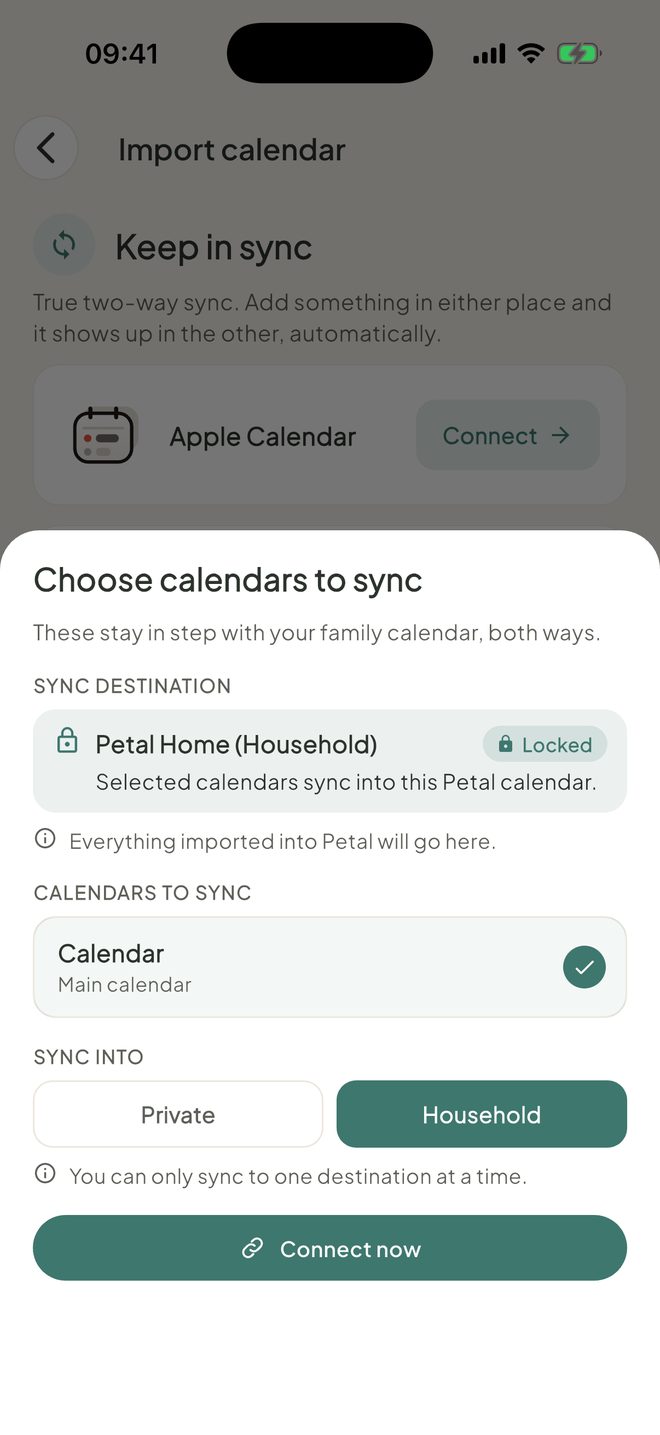
On Choose calendars to sync, tick the calendars you want. Under Sync into, choose Private or Household, then tap Connect now.
Only a household admin can choose Household. If you're not an admin, the calendar can only sync into your private space.
Change or disconnect later
Back on Import calendar, the card shows Connected. Tap Change to find Sync now, Choose calendars or Disconnect. To disconnect, you'll be asked to type CONFIRM.
Good to know
- Events you add in Petal Home go into a new calendar called Petal Home (Household) or Petal Home (Private). On iPhone, they go into a new calendar on your phone, with your household's name in it.
- Apple Calendar syncs through your device, so it catches up each time you open Petal Home.
- If you disconnect, the events you brought in from that calendar are removed from Petal Home, and events you made in Petal Home stay. Nothing is deleted from Google, Outlook or Apple.
- You can only sync to one place at a time. To connect another service, disconnect the first.
- If you're not an admin you'll see "The family calendar is looked after by an admin, so this calendar comes into your private space."
- Don't see Import a calendar? You need to be able to edit Plan. An admin may have set Plan to View or Hidden for you.
- You can connect one calendar account at a time, so events don't double up.
Keep going
Still stuck?
Email hello@petalhome.app and we'll help.