 Petal Home
Help centre › Add a plan to the calendar
Add a plan to the calendar
Put something on the family calendar, choose who can see it, and get a reminder before it starts.
Tap a day on Plan
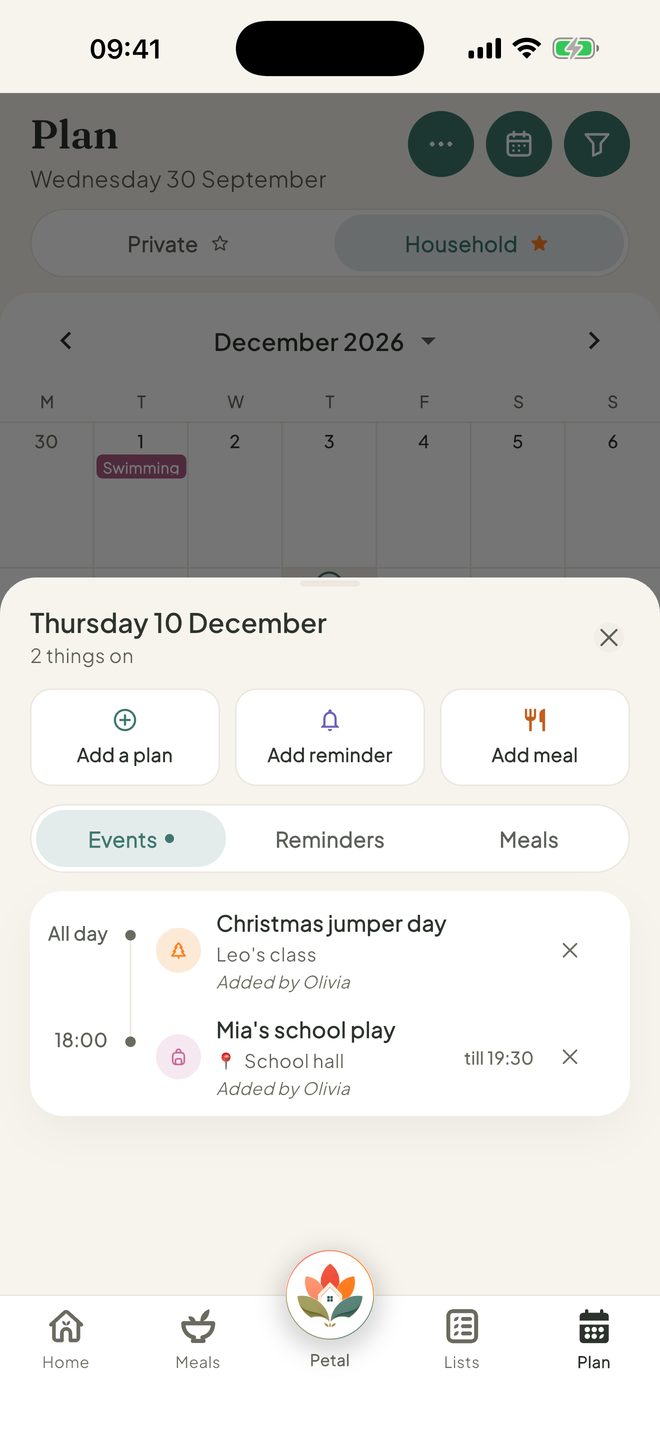
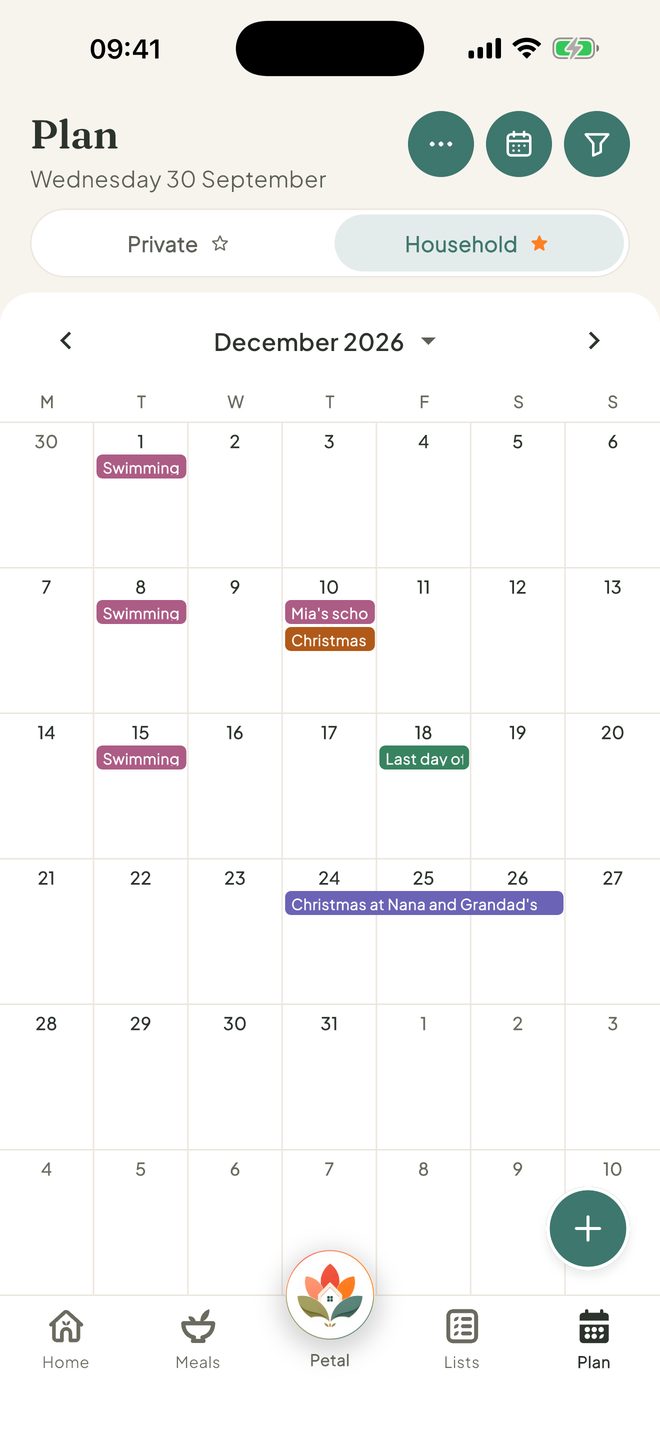
Open Plan and tap a day on the month view. A sheet slides up showing everything on that day, with Add a plan, Add reminder and Add meal.
The sheet opens from the month view. You can also tap the + at the bottom right. On the week and day views, use the + or tap an hour.
Name it and choose who can see it
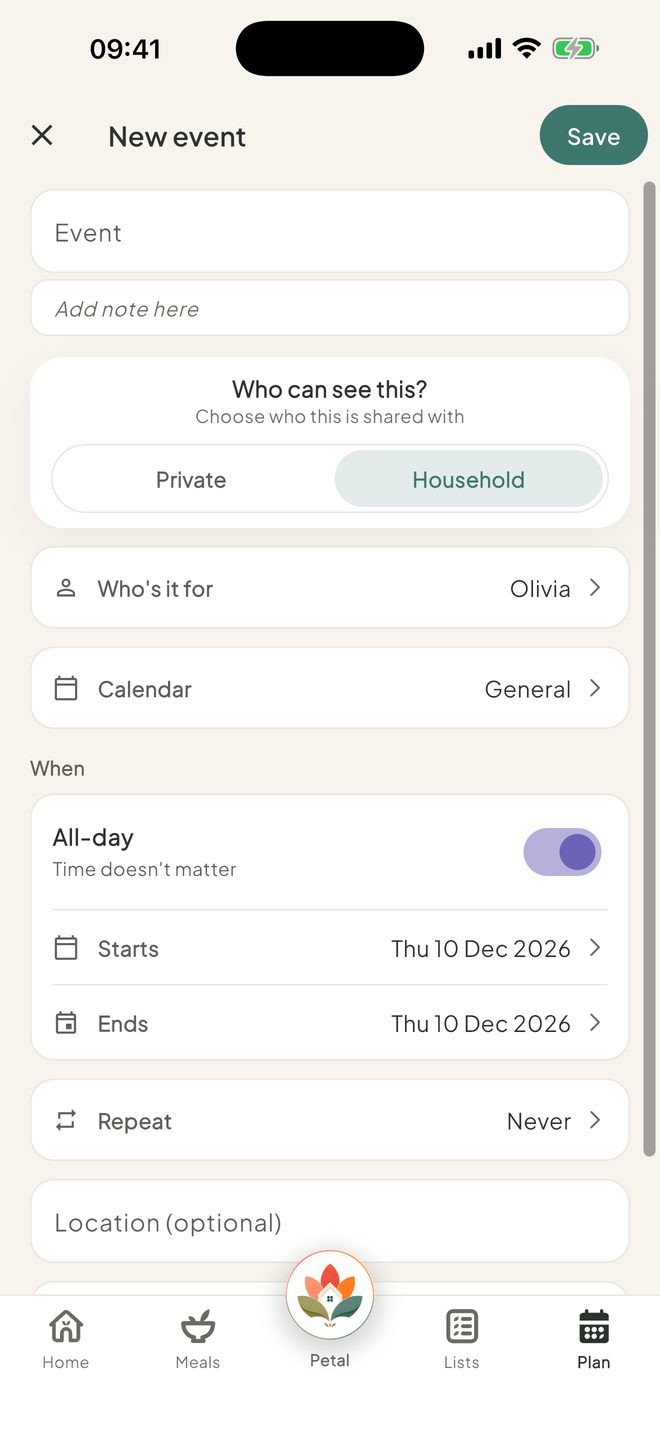
Tap Add a plan and give it a name. Under Who can see this? choose Household for everyone, or Private for just you. For a household plan, pick Who's it for. Then choose the Calendar and the time. Or turn on All-day.
Add the extras
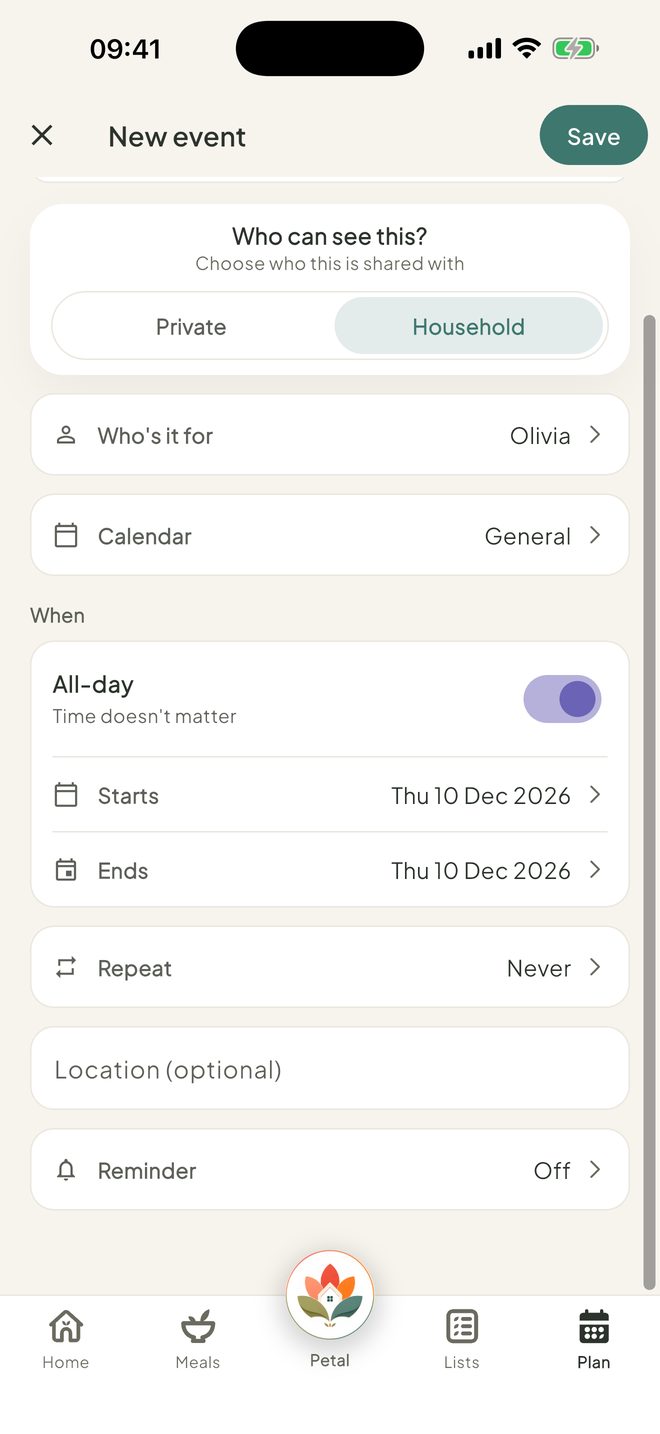
Further down you can set Repeat, a Location (optional), a Reminder and a Countdown (part of Premium).
Works shifts? Repeat has a Shift option. See Set up a shift pattern. Repeat only shows when the plan starts and ends on the same day.
Choose your reminders
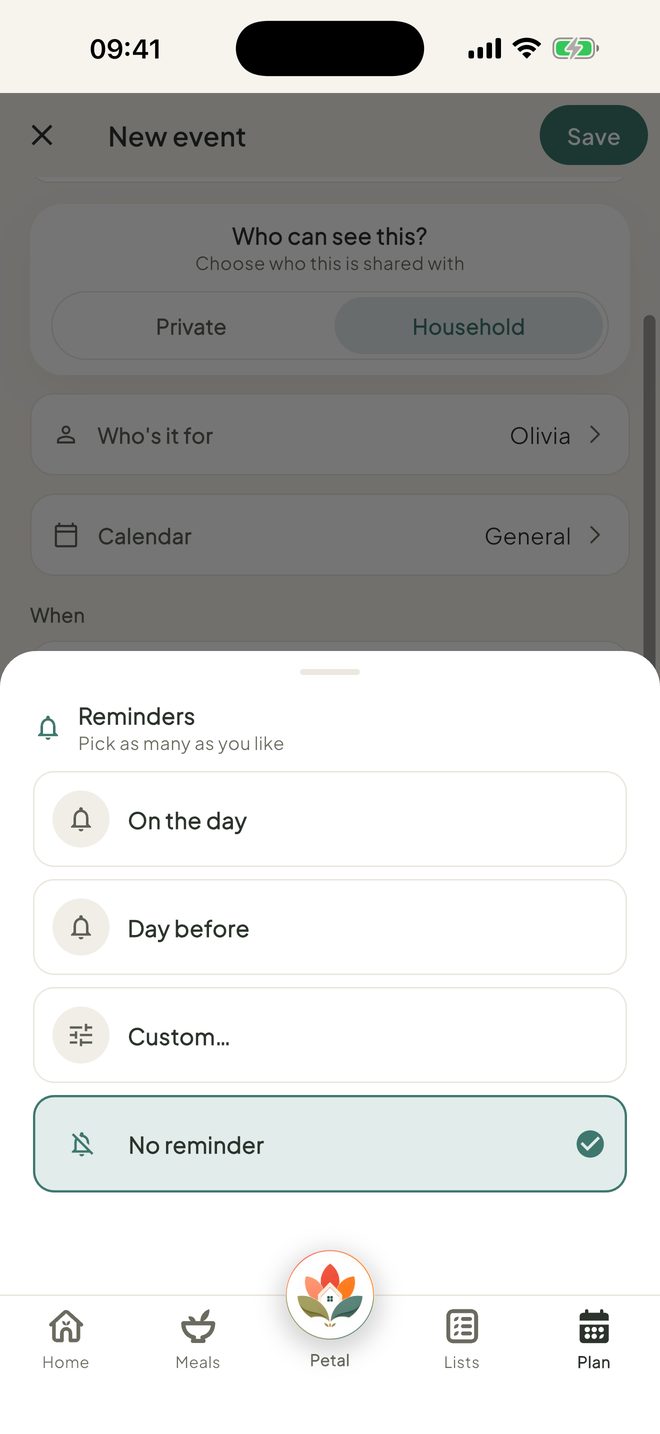
Pick as many as you like. For a plan with a time: At the time, 15 min before, 1 hour before or Day before. For an all-day plan: On the day or Day before. Or Custom… if you want to choose your own time.
Tap Save
Tap Save at the top right. The plan appears on the calendar for everyone who can see it.
Good to know
- With Premium, plans from Google, Outlook or Apple Calendar can show here too.
- Everyone who can see a household plan can see who added it.
- Making a New calendar in the Calendar picker is part of Premium. Teams meeting or Google Meet only show when Outlook or Google is connected.
- Can't add a plan? An admin may have set Plan to View or Hidden for you.
Keep going
Still stuck?
Email hello@petalhome.app and we'll help.