 Petal Home
Help centre › Change someone's role or make them an admin
Change someone's role or make them an admin
How to change what role someone has in your household.
Before you start
Only an admin can do this.
1Step 1 of 2
Open Members
Tap the Petal button in the middle of the bottom bar, then Settings, then Members.
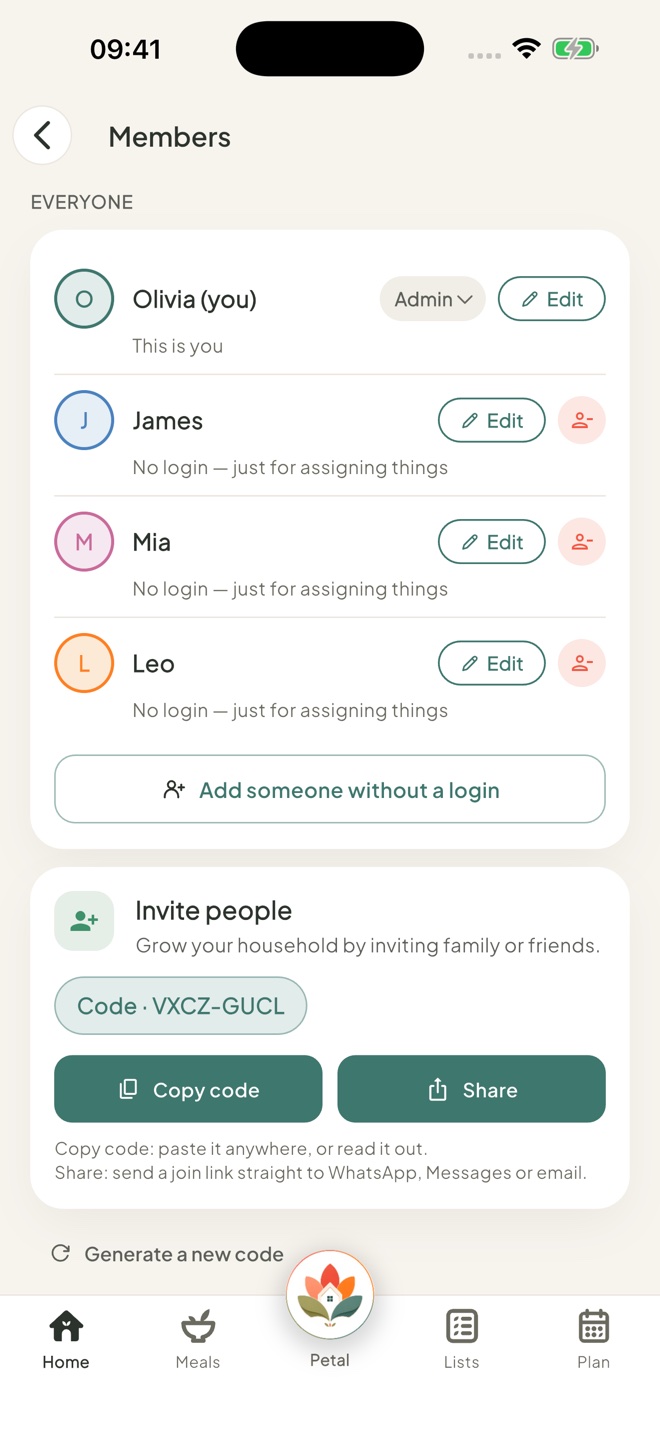
2Step 2 of 2
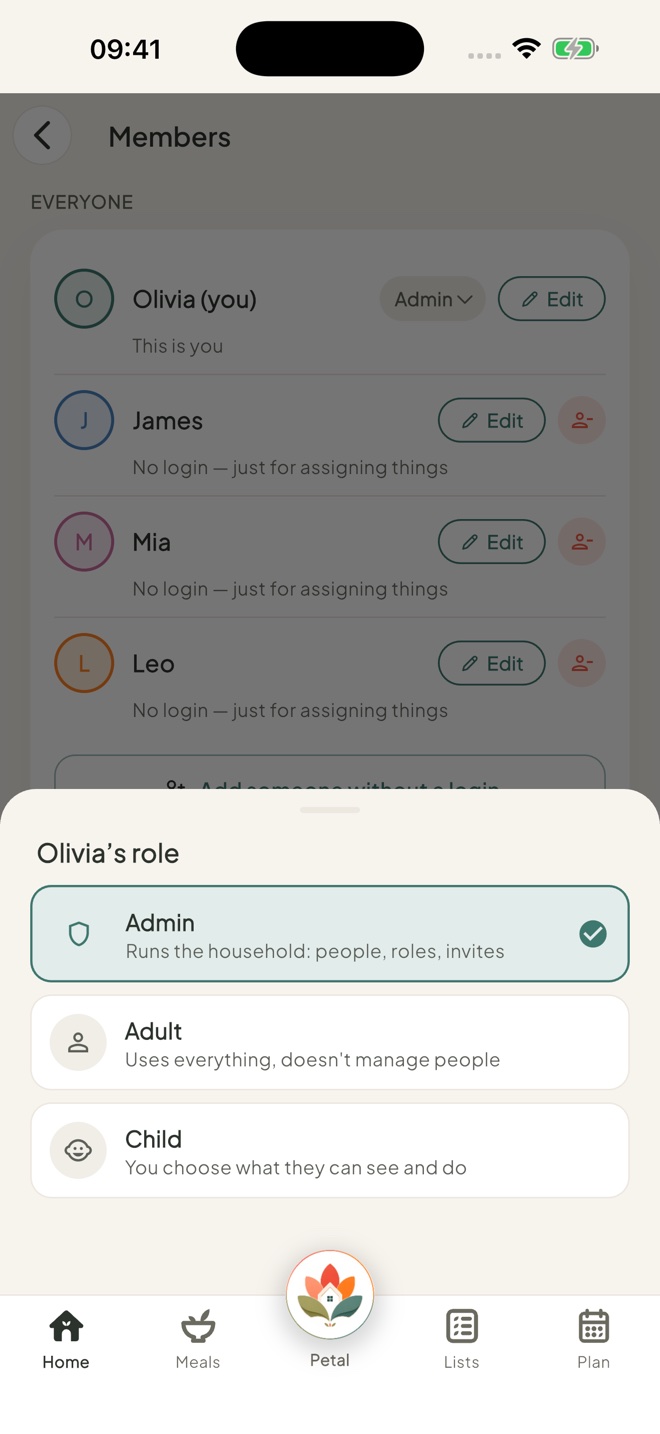
Tap their role
Tap the role label on their row, for example Adult, and choose Admin, Adult or Child. Each choice says what it means.
Good to know
- Admin can approve people joining, change roles and what a child can see, remove people, make a new invite code and connect a calendar to the household. Adult has full access to everything shared. Child only sees what an admin allows.
- The role pop-up explains each one. Admin: runs the household, meaning people, roles and invites. Adult: uses everything, but doesn't manage people. Child: you choose what they can see and do.
- An admin has to be changed to Adult before they can be removed.
- If you're the last admin, you'll see "Please make someone else an admin before you stop being one."
- Moving someone to Child applies the child settings. See Add a child and choose what they can see.
Keep going
Still stuck?
Email hello@petalhome.app and we'll help.