 Petal Home
Help centre › Invite your family
Invite your family
Here's how to invite someone to your household, approve them when they join, and choose what they can see.
You'll need to be in a household already. See Set up your household.
Open the invite card
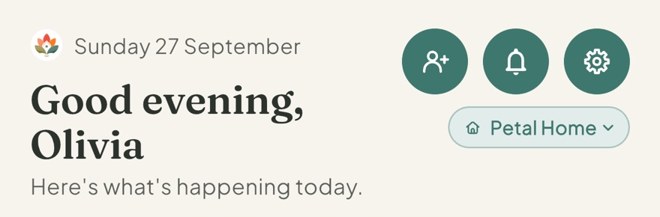
On Home, tap the round person-with-a-plus button (Add family) at the top right. It's the first of the round buttons. Or go to Settings, then Members.
Share your code
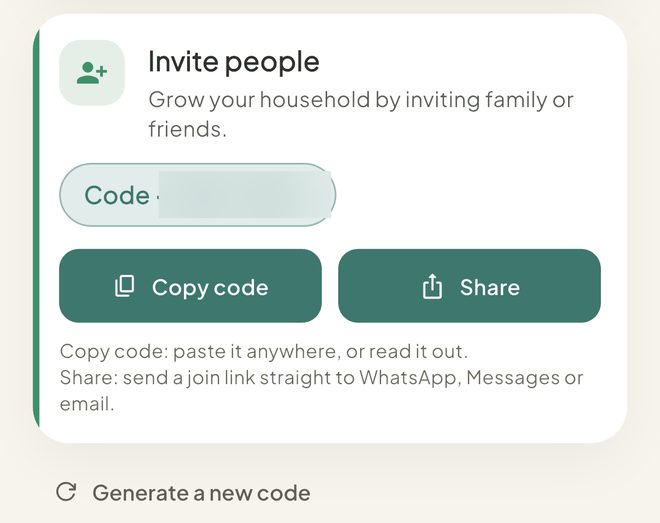
In the Invite people card you'll see your code, for example ABCD-2345. Tap Share to send a join link by message, WhatsApp or email. Or tap Copy code to paste the code somewhere or read it out.
They tap the link
If they already have Petal Home, the app opens. If not, the web page shows the code so they can copy it when they're ready to join. They sign up or log in, then join with the code.
Until they're accepted, they see a short message saying they're almost in (or Request sent, if they already belong to another household), then "Waiting to be accepted into" the household's name. They can already add their own reminders and lists. Shared areas show a padlock, and tapping one explains it unlocks when they're let in.
Accept them
Admins get a Someone wants to join notification, then a pop-up saying the person is trying to join your household, with Accept, Decline or Not now. Tap Accept, then choose Adult (Full access to everything shared) or Child (You choose what they can see). Then tap Accept as adult or Accept as child.
Declining asks you to confirm first. To stop someone asking again, tap Accept, then Decline, then Decline and block. If several people are waiting, the pop-up shows Review, which opens a list of everyone asking. Tap each name to answer.
Choose what a child can see
Only a child can be limited. Adults and admins always have full access. For a child, set each area under What can they see? to Hidden (it stays on their screen but is locked and says it's turned off for them), View (they can look, but not add or change anything) or Edit (full use). The areas are Meals, Groceries ("The shopping list and pantry"), Lists, Reminders, Plan, Household, Countdowns and Outgoings. Everything starts as Edit, except Outgoings, which starts as Hidden. See Add a child and choose what they can see for each step.
Keep their private things private
Leave Private space on and a child gets a private space for their own lists, reminders, countdowns, plans, Outgoings and Household info. Only they can see it, not even you. Turn it off and everything they add is shared with the household.
Change it any time
Only an admin can. Tap the Petal button in the middle of the bottom bar, then Settings, then Members. On their row, tap Manage what … can see & do. Each tap saves straight away. Their phone catches up the next time they open Petal Home.
Good to know
- Every request to join a household needs an admin to accept it. Only admins can accept or decline, change what a child can see, remove people, or make a new code.
- Adults and admins always have full access. For someone who should only look, such as a grandparent or childminder, an admin can change their role to Child in Members, then set the areas to View. The Child role isn't about age.
- An area you hide stays on the child's screen, locked, and says "Turned off for you". Tapping it explains: "An adult in your household has turned this off for you. Ask them if you need it." A child set to View sees: "You have view-only access. Ask an admin or adult if you need to change this."
- A child can't see your invite code. An adult can see it and share it.
- A household can have up to 12 people. People waiting to be accepted count towards that. People without a login don't.
- While someone waits, Plan is open but on Private only, and Household is padlocked. Calendar sync and import from Google, Outlook and Apple are padlocked too, though adding a calendar from a link into Private still works. Inviting people is locked, and Settings stay open.
- While they wait, they get the household's Premium for up to 14 days.
- An invite link keeps its code even when a brand-new account signs up on that phone.
- If you decline someone, the private lists, reminders and countdowns they added while waiting are deleted.
- While someone is still waiting, admins get a morning nudge for up to 7 days.
- To change someone's role or make them an admin, tap the role label (for example Adult) on their row in Members, then choose Admin, Adult or Child.
- To remove someone with a login, tap the red remove button on their row, then type CONFIRM. Admins can't be removed this way: change them to Adult first.
- Inviting people, roles and choosing what a child can see are all free. Joining a household is always free. If you're already in a household, setting up another one needs your own Premium plan.
- An admin can tap Generate a new code. Old invite links then stop working.
Keep going
Still stuck?
Email hello@petalhome.app and we'll help.