 Petal Home
Help centre › Set up a shift pattern
Set up a shift pattern
Add your work rota once, and Petal Home fills it in on the calendar for you.
Before you start
Start by adding a plan for your first shift. See Add a plan to the calendar.
1Step 1 of 4
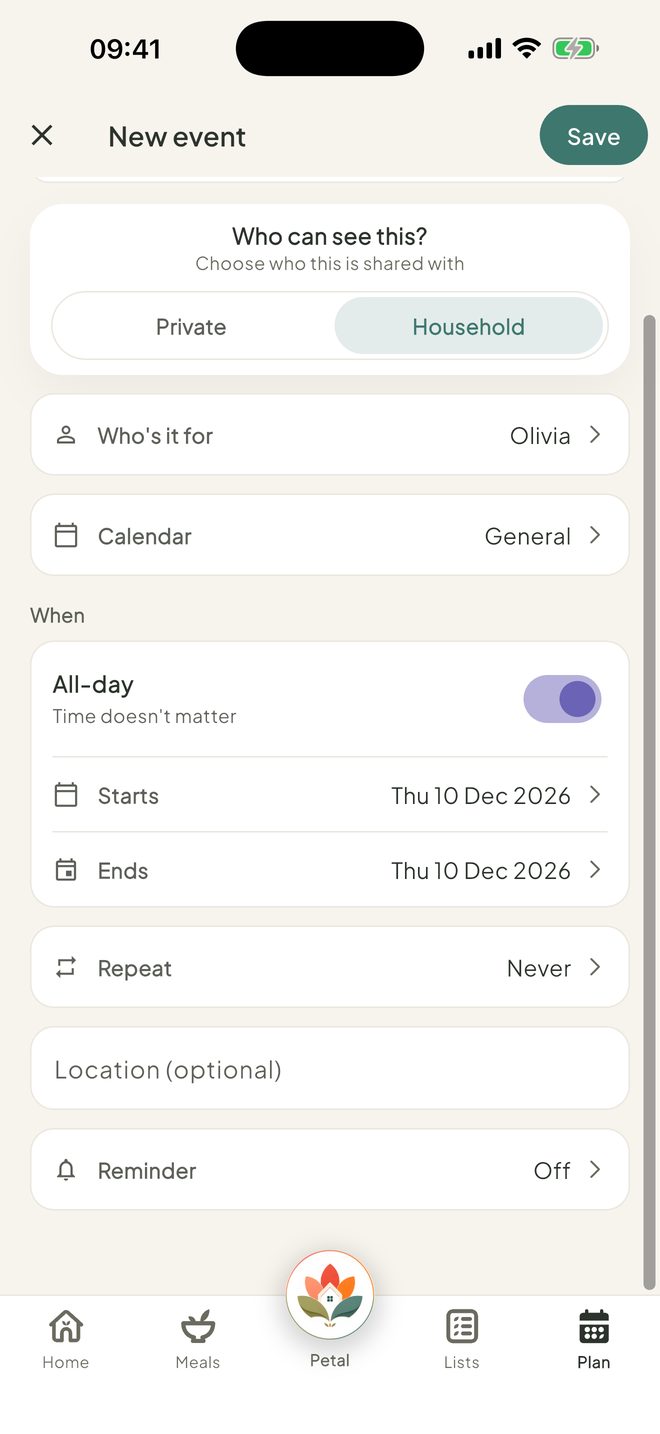
Open Repeat on your first shift
On the new plan, scroll down and tap Repeat.
2Step 2 of 4
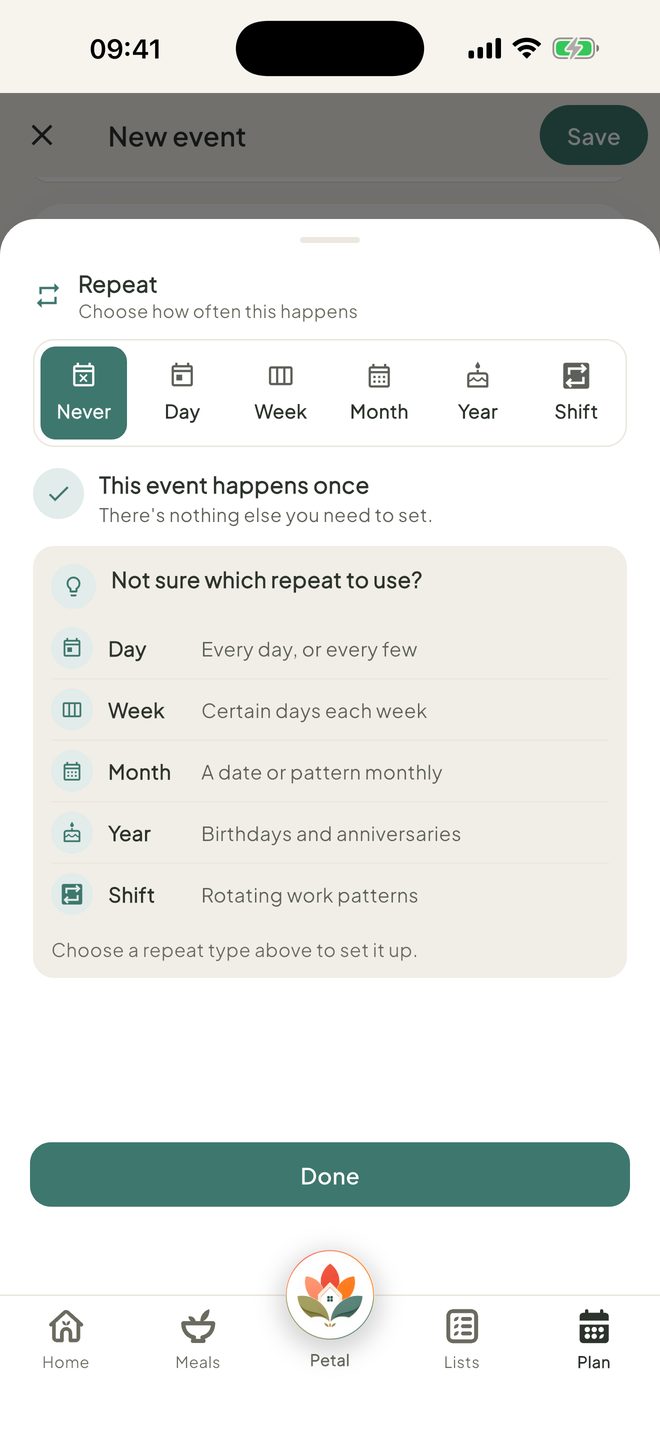
Choose Shift
You'll see Never, Day, Week, Month, Year and Shift. Tap Shift.
3Step 3 of 4
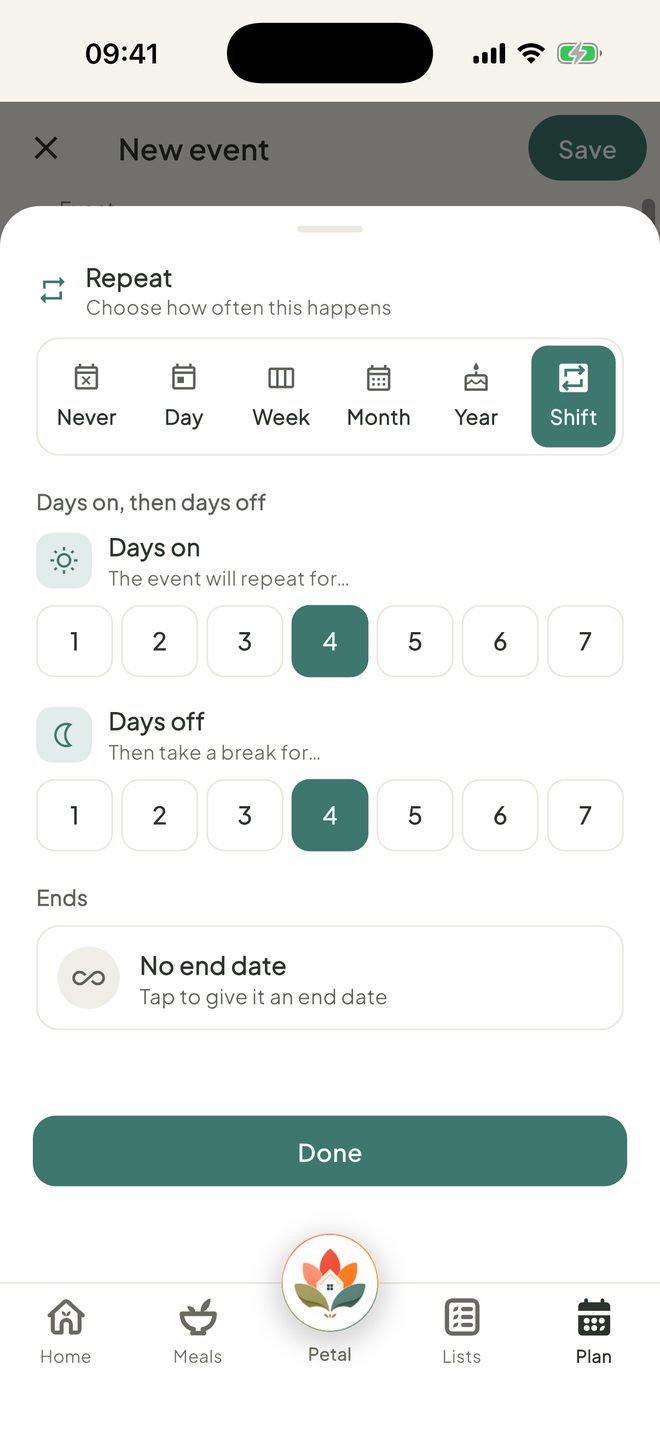
Set your days on and off
Under Days on, then days off, choose how many Days on and how many Days off.
4Step 4 of 4
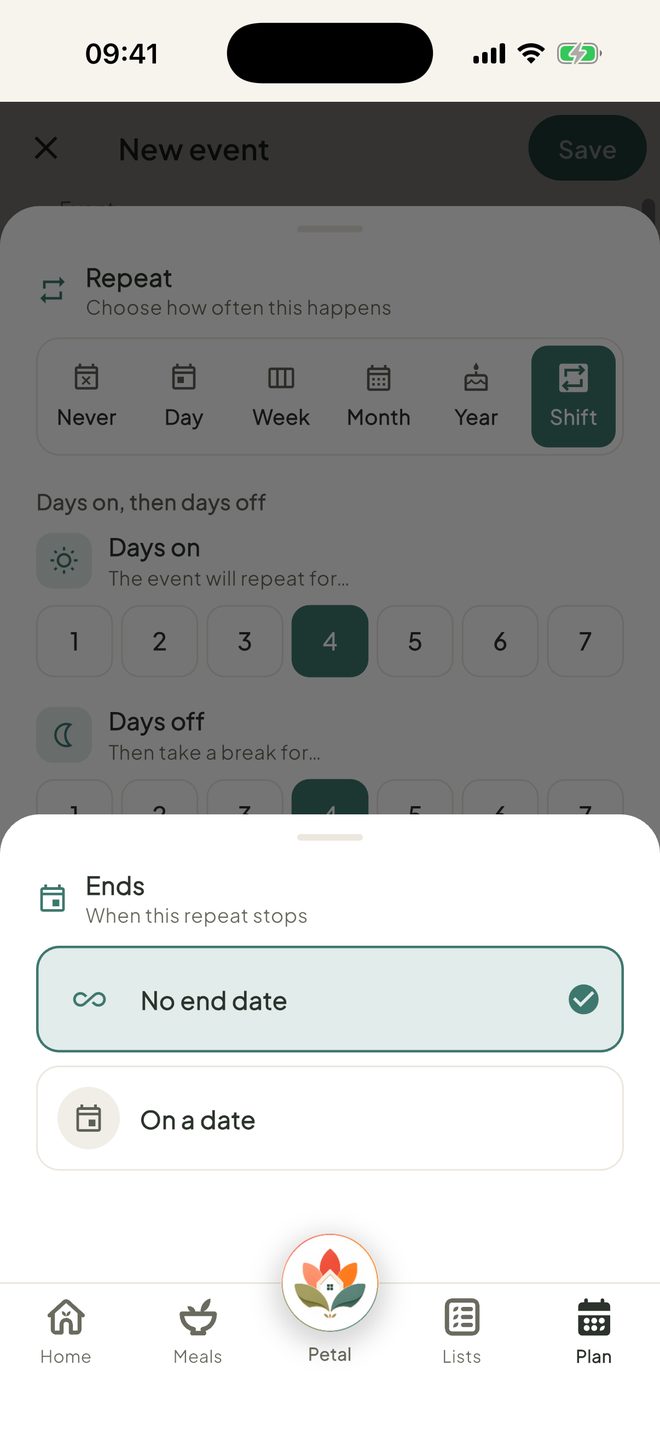
Choose when it ends, then save
Under Ends, pick No end date or On a date. Tap Done, then Save. Your shifts will appear on the calendar.
Good to know
- Shift patterns are free.
- Days on and Days off can each be 1 to 7. The plan's date is your first working day.
- Under Ends, tap the card first, then choose. You can also Clear end date later.
- Can't add a plan? An admin may have set Plan to View or Hidden for you.
Keep going
Still stuck?
Email hello@petalhome.app and we'll help.