 Petal Home
Help centre › Add someone without a login
Add someone without a login
Add someone who won't have their own login, such as a young child, so you can still give them reminders, plans and jobs.
Before you start
Only an admin can do this.
1Step 1 of 3
Open Members
Tap the Petal button in the middle of the bottom bar, then Settings, then Members.
2Step 2 of 3
Add a person
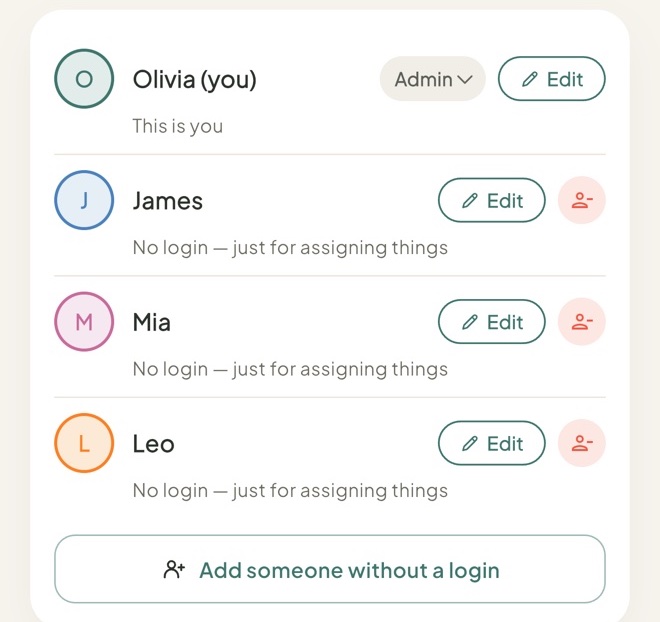
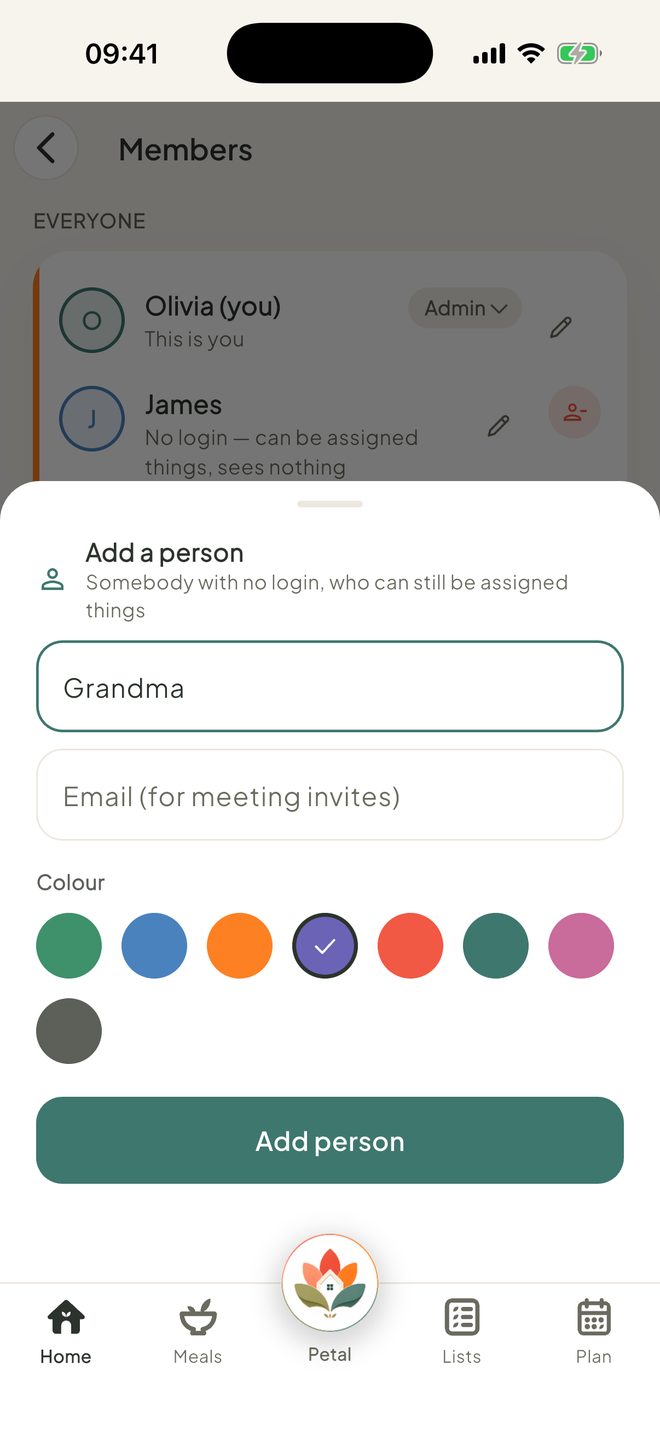
Under the list, tap Add someone without a login. Type their Name. You can also add an Email for meeting invites.
3Step 3 of 3
Save them
Tap Add person. They appear in the list without a login. You can give them things to do, but they don't use the app themselves.
Choosing their colour is part of Premium. Everyone gets their own colour on the calendar for free.

Good to know
- To change their name or email, tap Edit on their row. To remove them, tap the red remove button, then Remove. If you remove them, anything assigned to them shows as unassigned.
- People without a login don't count towards the 12 people a household can have, and there's no limit on how many you add.
- Their row says "No login: just for assigning things". Only an admin can add or change them.
Keep going
Still stuck?
Email hello@petalhome.app and we'll help.