 Petal Home
Help centre › Household info
Household info
Keep the Wi-Fi code, car registration, bin day and other details in one place, so nobody has to ask.
1Step 1 of 4
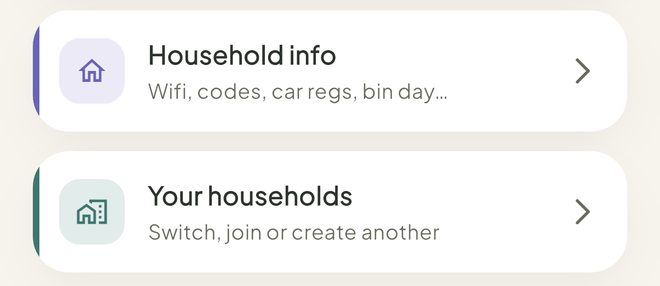
Open Household info
Tap the Petal button in the middle of the bottom bar, then Settings, then Household info.
You can also tap the round Settings button on Home. Household info is under Your household, below Members.
2Step 2 of 4
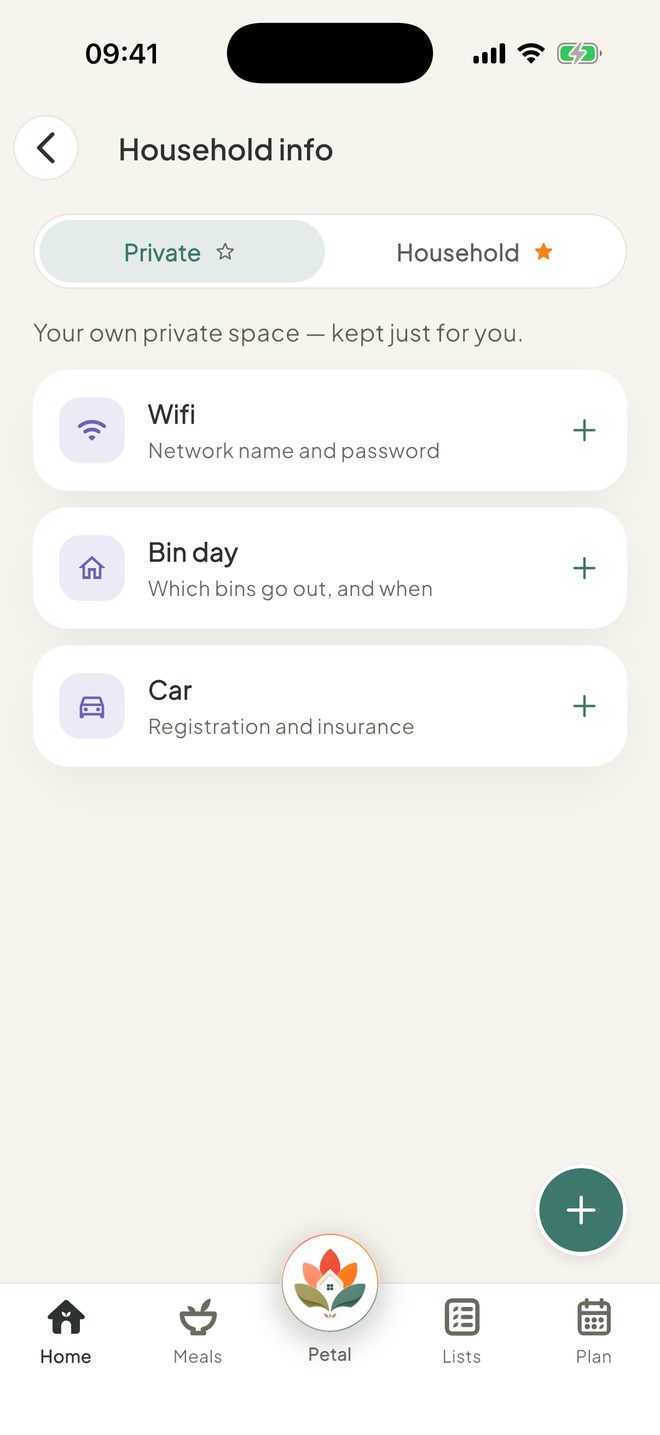
Start with a suggestion
If it's empty, tap Wifi, Bin day or Car to start with one of the suggestions.
3Step 3 of 4
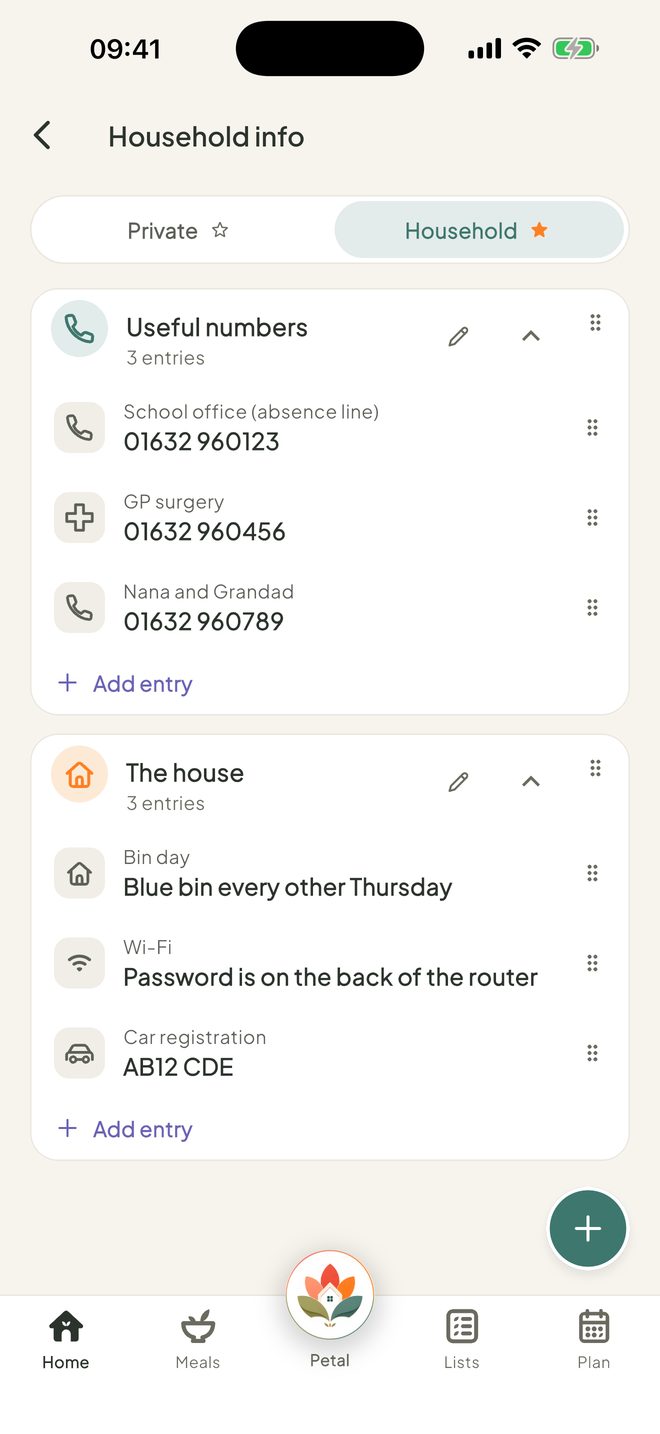
Add an entry
Tap +, then Add an entry. Fill in the Label and Detail, choose a Group and an Icon, then tap Add entry.
4Step 4 of 4
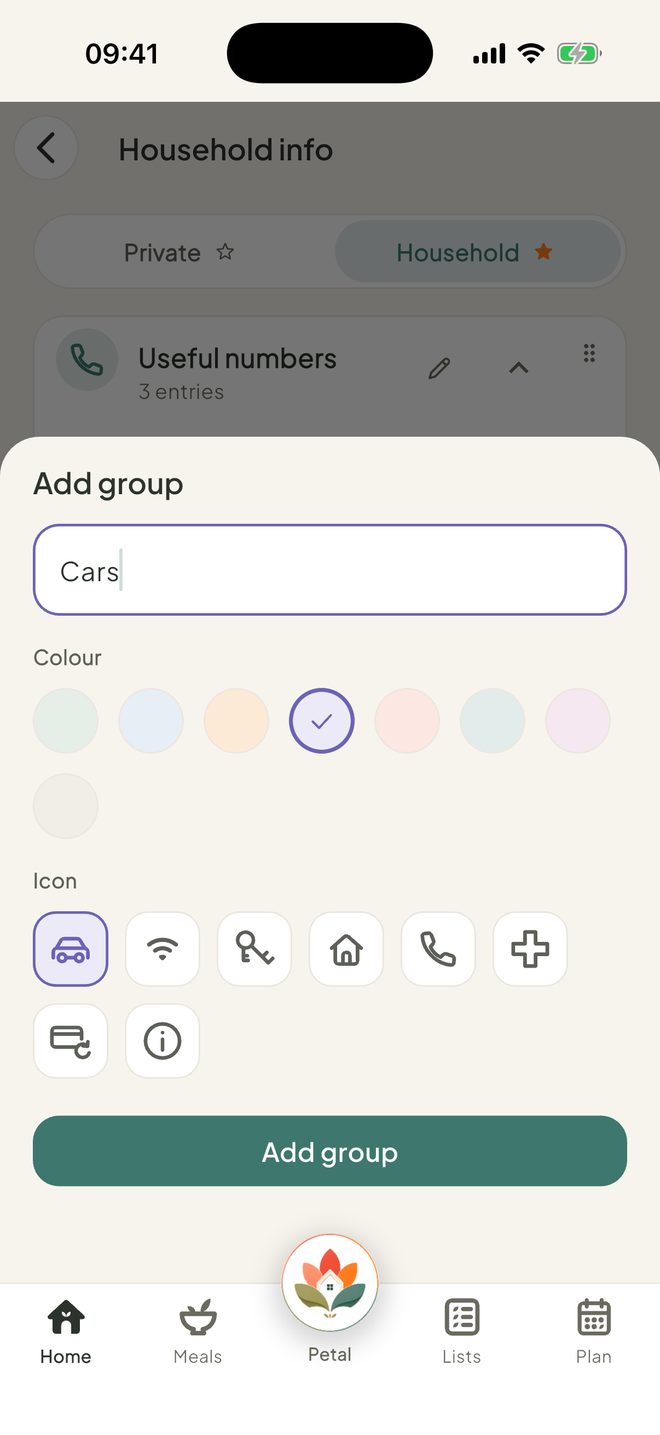
Make your own groups
Tap +, then Add a group for things like Cars, Wifi or Codes. Choose a name, colour and icon, then tap Add group.
Good to know
- An entry goes on the tab you're on: Household for everyone, or Private for just you.
- Household info is free.
- Tap an entry to edit or delete it. Drag to reorder. Each group has its own Add entry, and a pencil to edit or delete the group.
- In the US, the starter is called Trash day.
- Can't find Household info, or can't add to it? An admin may have set Household to View or Hidden for you.
Keep going
Still stuck?
Email hello@petalhome.app and we'll help.