 Petal Home
Help centre › Make Home your own
Make Home your own
Choose which cards sit on Home, their size and colour, and the order they appear in.
1Step 1 of 4
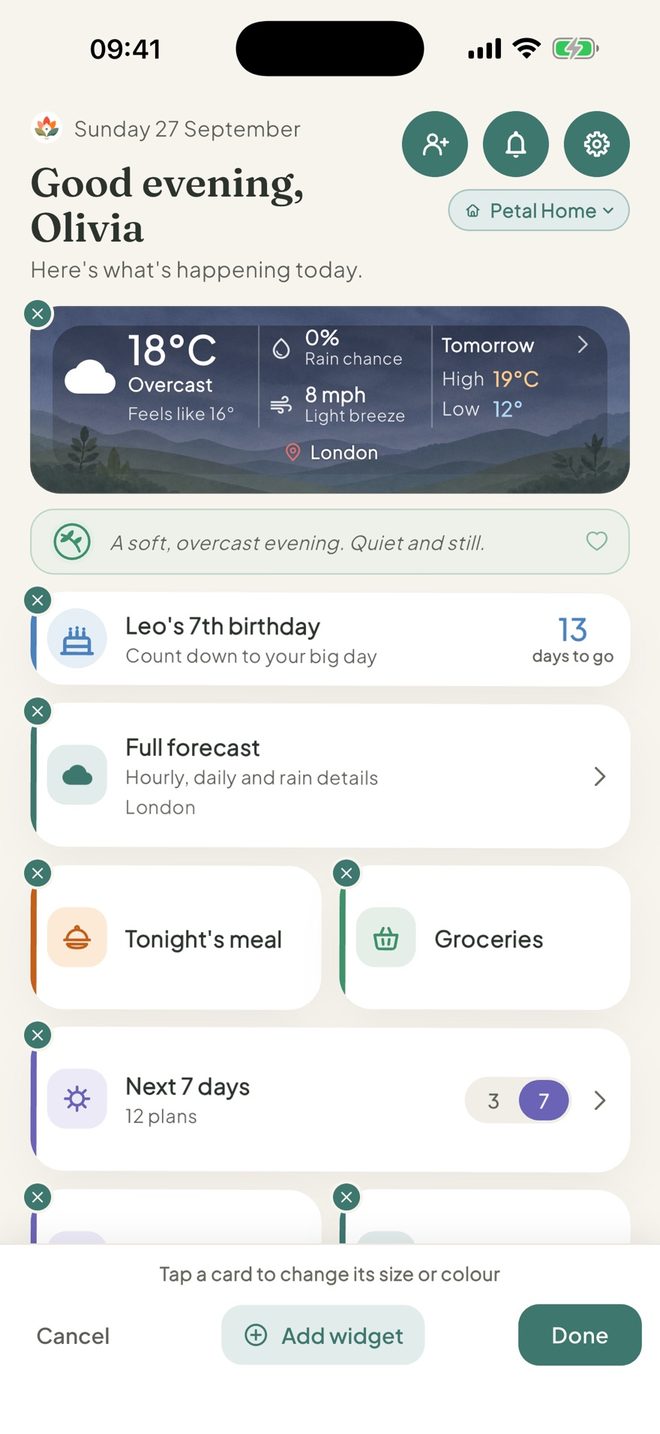
Press and hold on Home
Press and hold anywhere on Home to start changing it. A bar appears: Tap a card to change its size or colour.
2Step 2 of 4
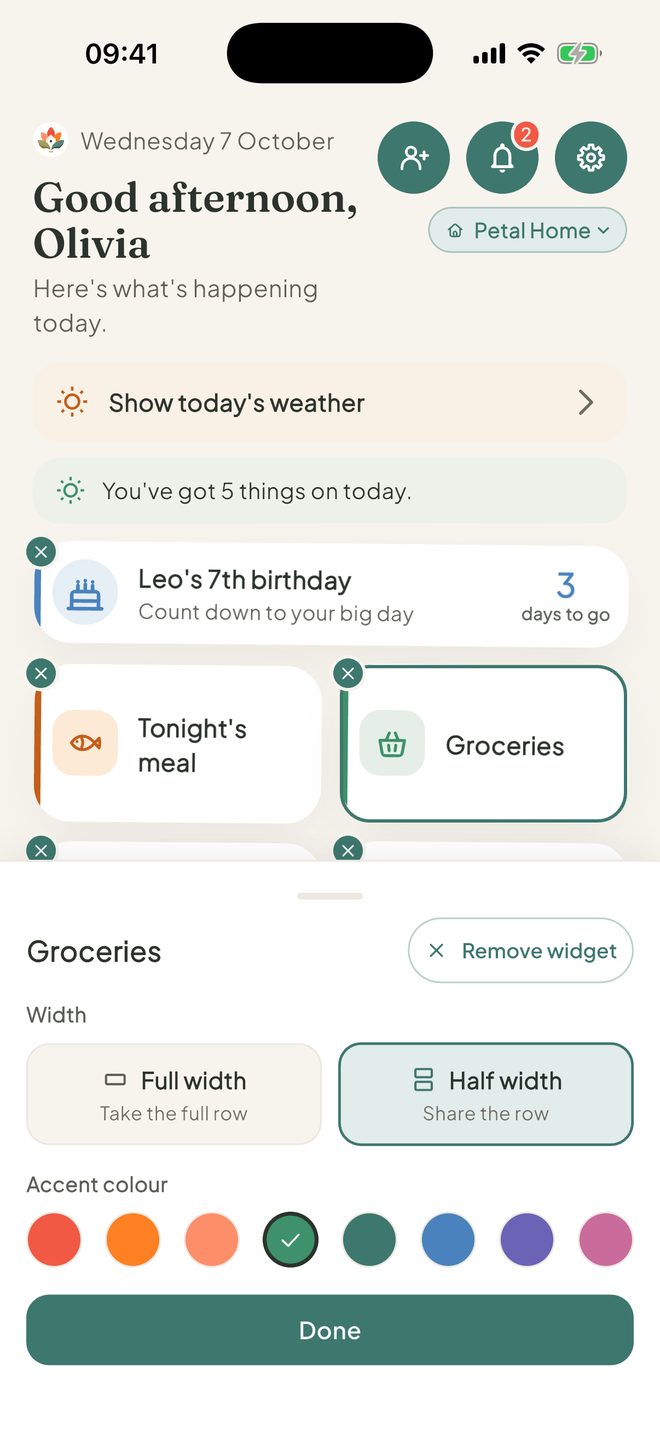
Change a card
Tap a card. Under Width choose Full width or Half width, and pick an Accent colour. Tap Done.
3Step 3 of 4
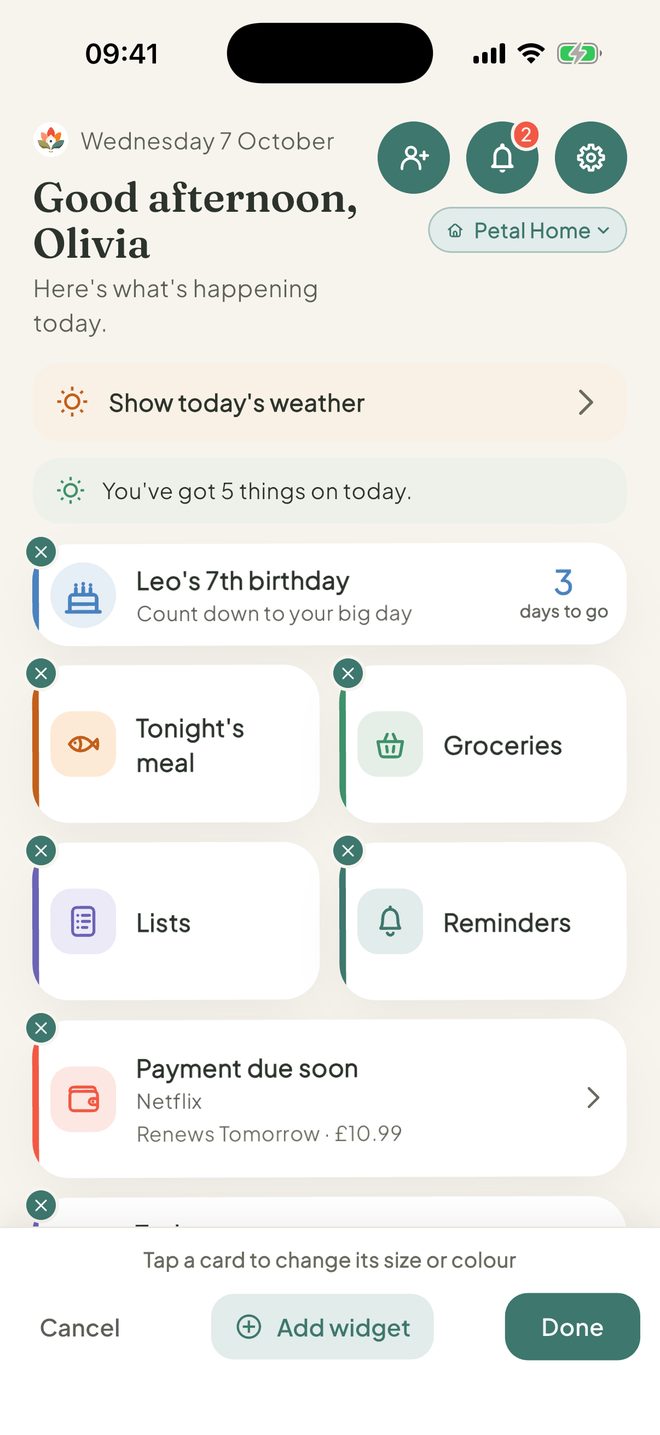
Move or remove cards
Press and hold a card and drag it to a new place. To remove one, tap the small cross on its corner, then Take it off.
4Step 4 of 4
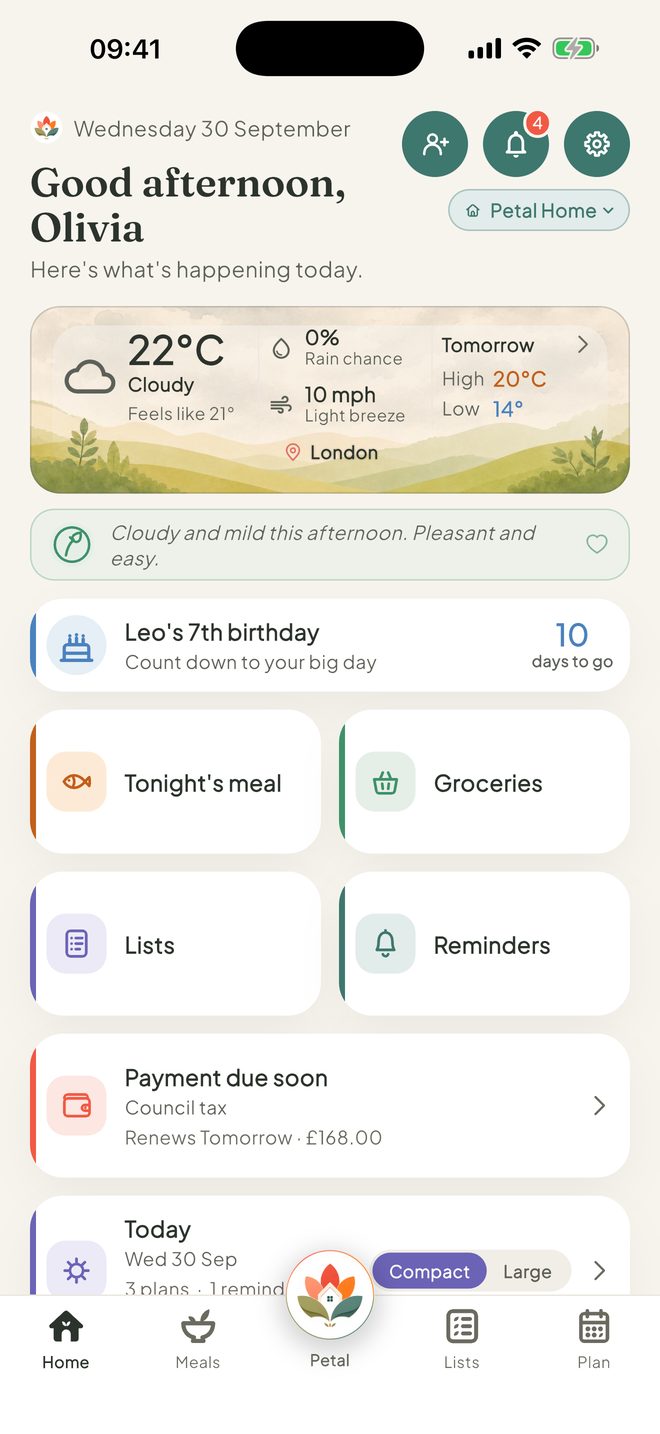
Add a card
Tap Add widget to bring back any card you took off, like Today, Tonight's meal or Full forecast. If they're all on Home already, it says Everything is already on your home screen. Tap Done when you're happy.
Good to know
- The Payment due soon and Countdown cards are part of Premium.
- You can also start from Settings, then Customise home.
- In edit mode, tap a card to see Remove widget. A Countdown card also has Which countdown.
- The little green note under the weather is the Daily note. It has its own on and off: take it off, and add it back from Add widget. It can't be moved.
- Add widget stays open after you add something, so you can add several.
- On iPad, Today and Next 7 days are always full width.
- Cards for areas an admin has turned off show as locked for a child.
Keep going
Still stuck?
Email hello@petalhome.app and we'll help.