 Petal Home
Help centre › Lists, groups and budgets
Lists, groups and budgets
See how to make a list, how groups, sections and sharing work, and how to add a budget to a list.
Make a list
On Lists, tap + and choose Household list or Private list. Tap Blank list, type a List name, then tap Create list.
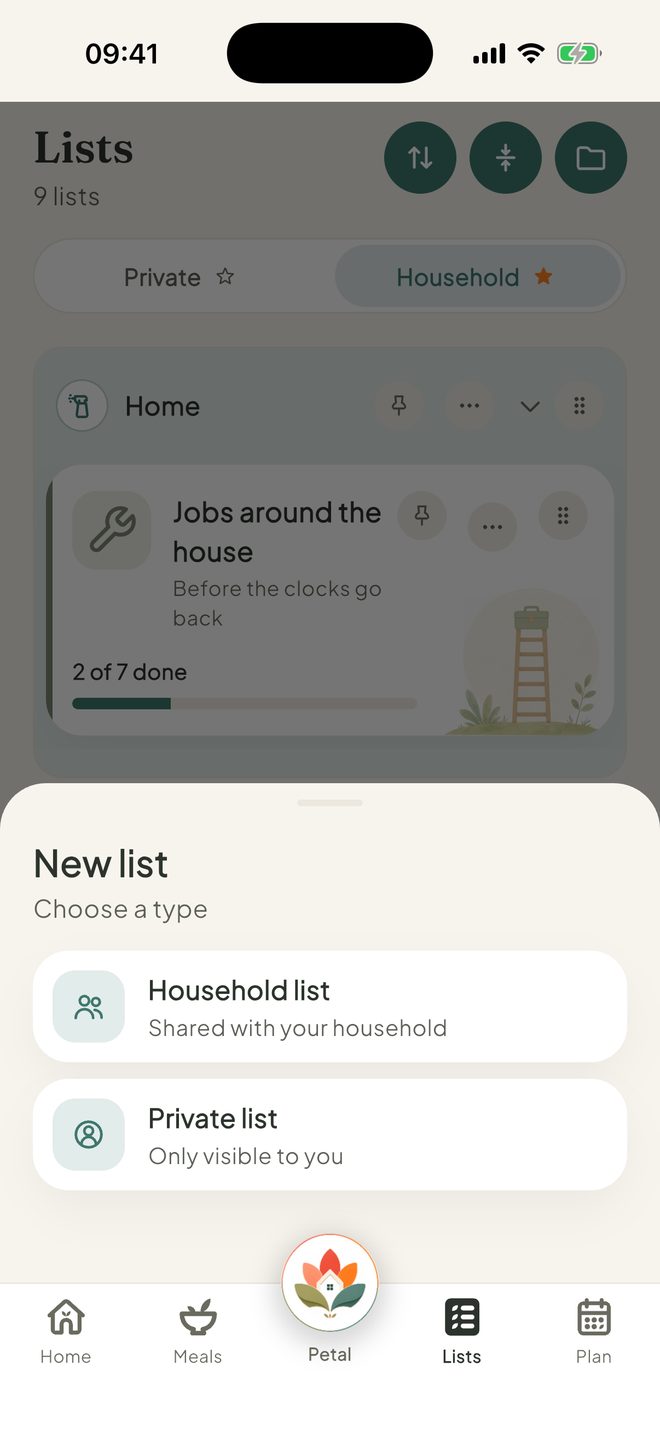
Put lists in groups
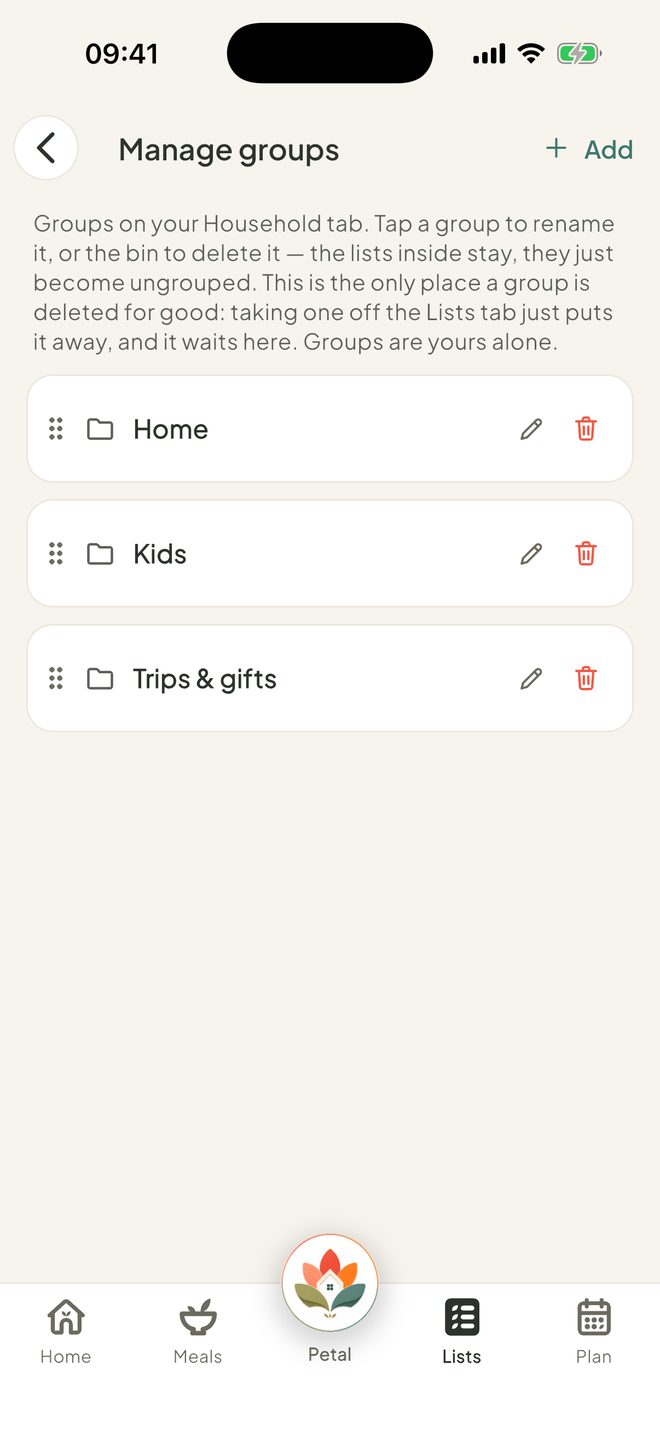
Tap the folder button (Manage groups), then Add. Type a name such as Home or Kids and tap Create. Each list shows a progress bar so you can see what's done.
Split a list into sections
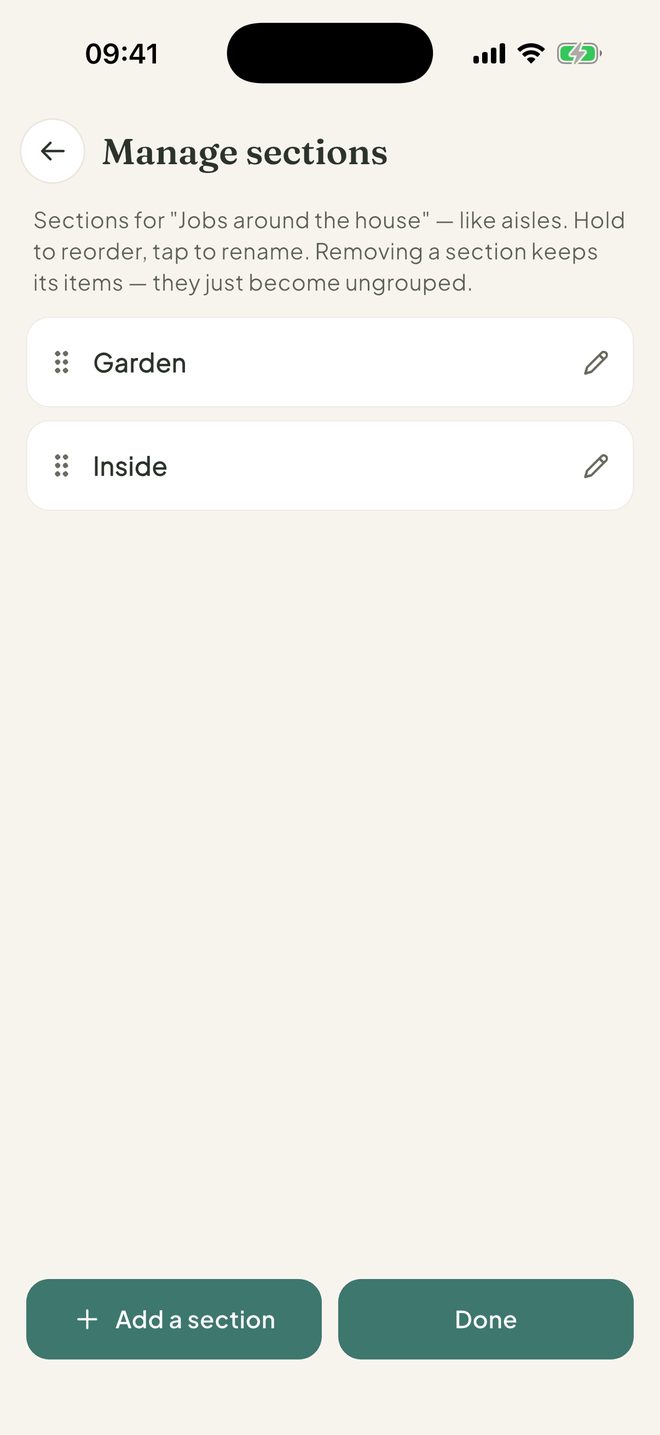
Open a list, tap ⋯, then Manage sections. Tap Add a section, give it a name, then Add section. You can add a note to any item too.
Choose who can see it
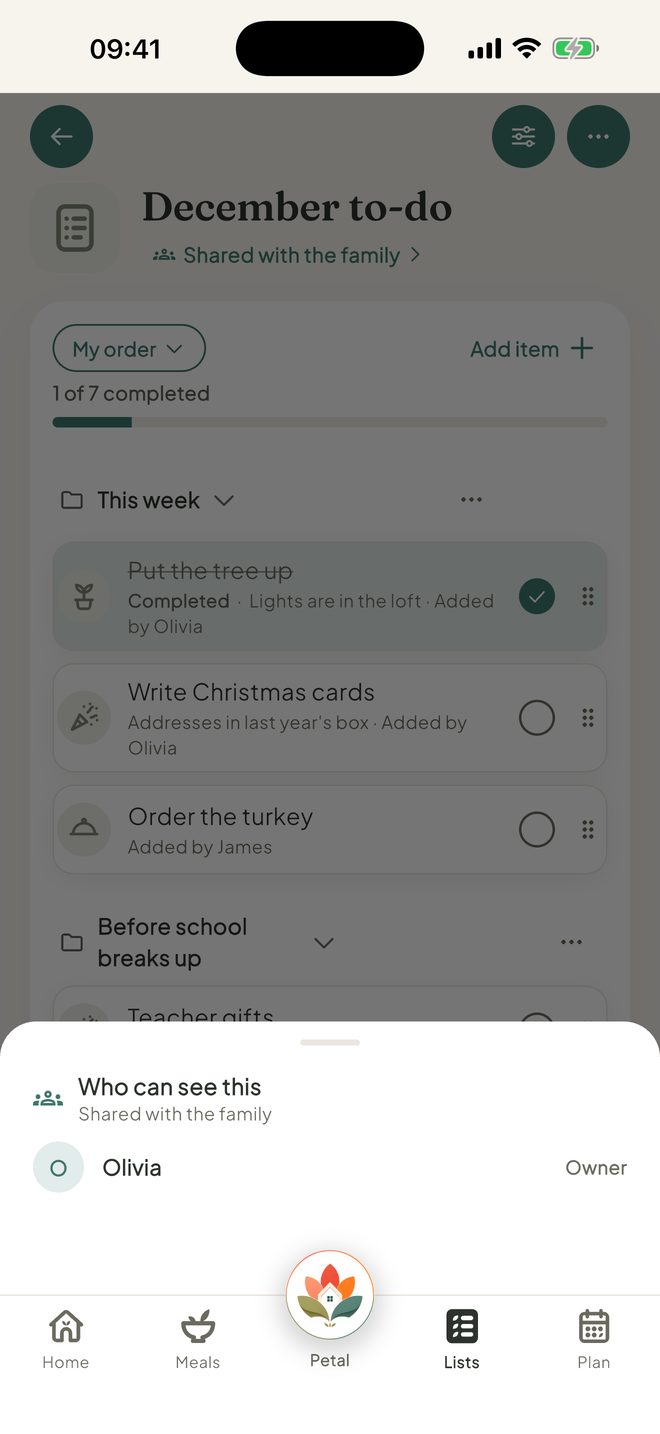
Under Who can see this?, a list can be shared with your household, shared with just certain people, or kept just for you.
Track a budget
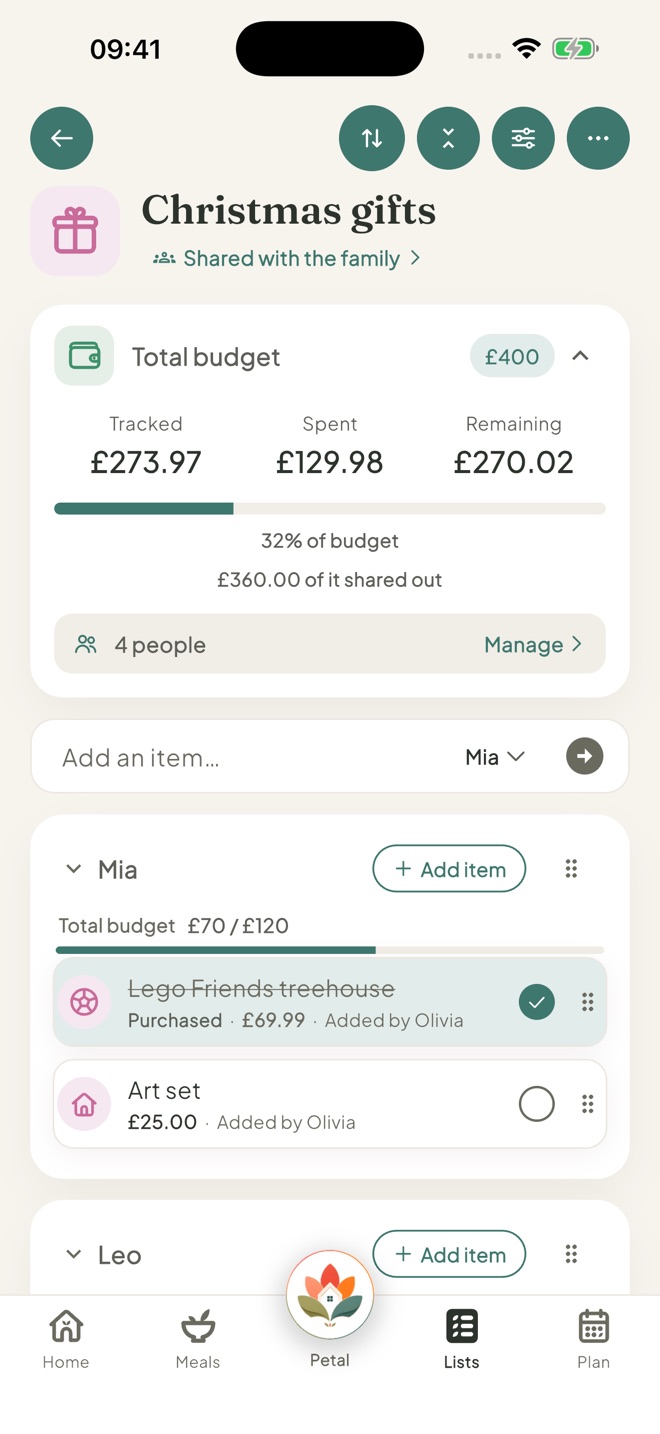
With Premium, use Overall budget to give a list a total budget and see what's tracked, spent and remaining. You can also set a budget for each person.
Good to know
- On the free version, the household can have 3 household lists, and each person can have 2 private lists. With Premium, there's no list limit.
- Groups, sections and sharing with chosen people are free. List templates, budgets, prices, quantities, priority, who it's for, links and linking to a countdown are part of Premium.
- Groups are yours alone. Each person sets up their own.
- An empty Lists page shows template buttons: Shopping, Wishlist and, on the Private tab, To-do. Templates are part of Premium, with a gold padlock on the free version.
- Only the person who made a list can delete it. Only they, or an admin, can make a household list private.
- If you go over the free limit, your newest lists stay usable and older ones lock.
- Can't add to or change a household list, or Lists says it's turned off? An admin may have set Lists to View or Hidden for you.
Keep going
Still stuck?
Email hello@petalhome.app and we'll help.