 Petal Home
Help centre › Plan meals and Groceries
Plan meals and Groceries
Plan what you're eating this week, then send a recipe's ingredients to Groceries.
Open This week
Tap Meals in the bottom bar. The This week card shows each day. Use the arrows or swipe to move between weeks.
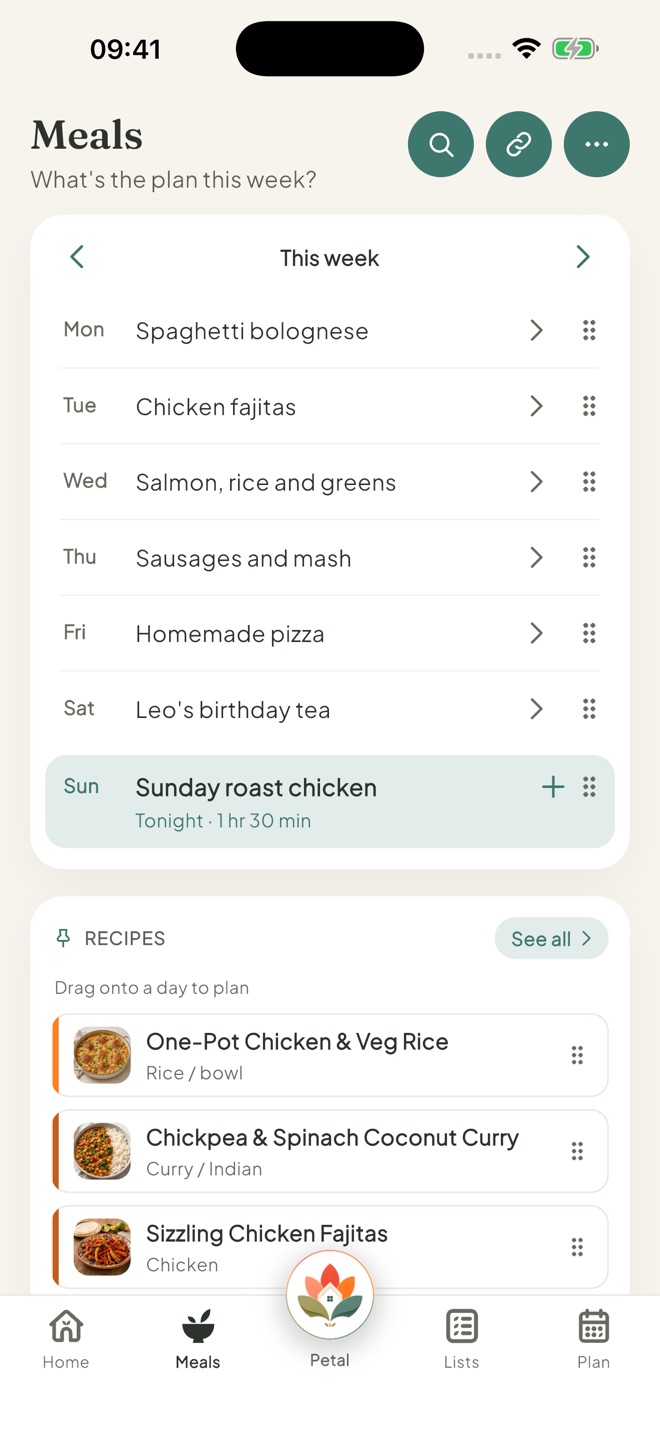
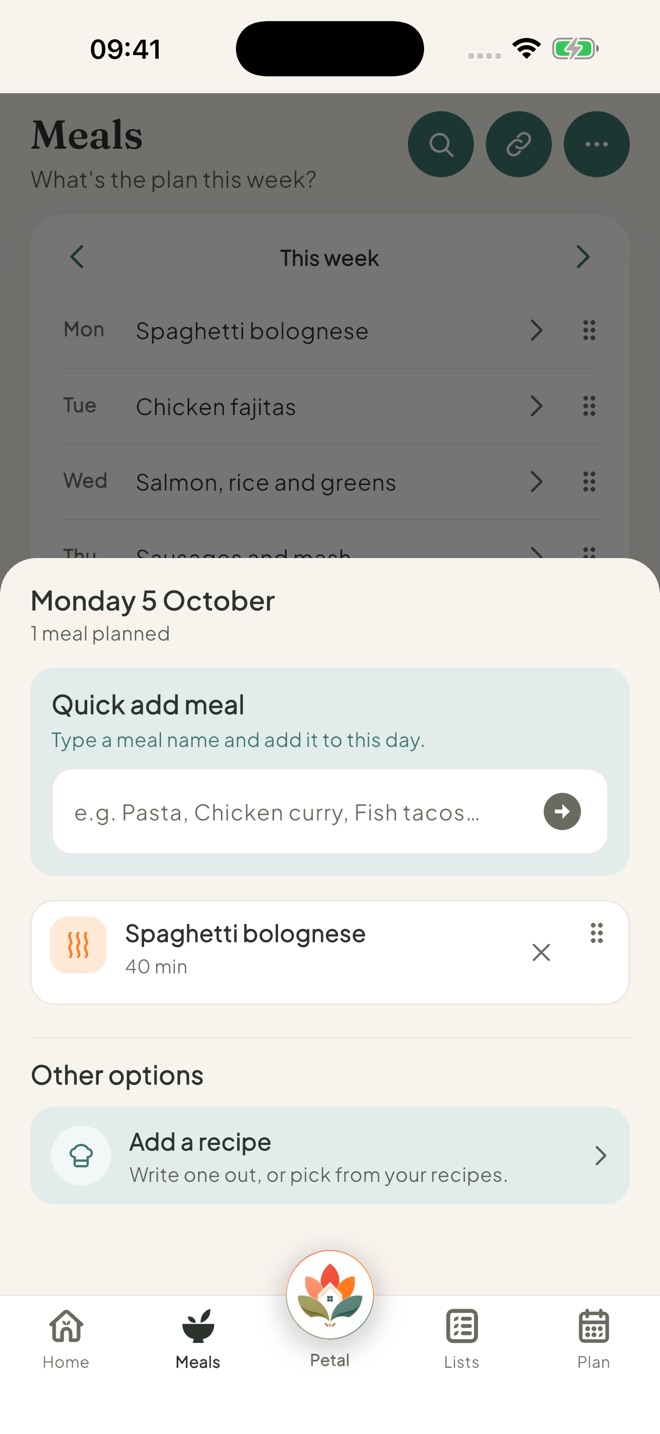
Add a meal to a day
Tap a day. Under Quick add meal, type the meal and tap the arrow to add it. Or tap Add a recipe to write one out or pick from your recipes.
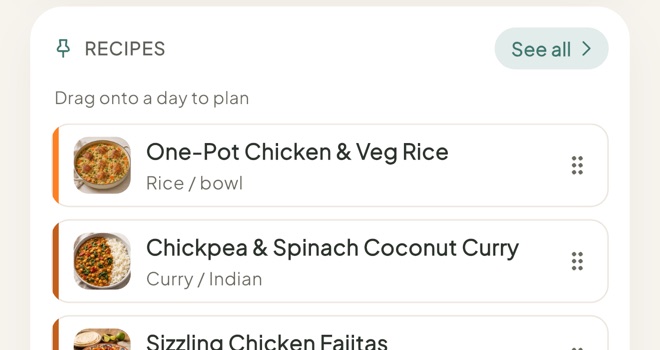
Drag a favourite onto a day
Your saved recipes show in the Recipes card under the week. Press and hold one, then drop it onto a day.
Tap See all to open Recipes. The New recipe card lets you Add a recipe (write your own) or Import a recipe from a website link (Premium).
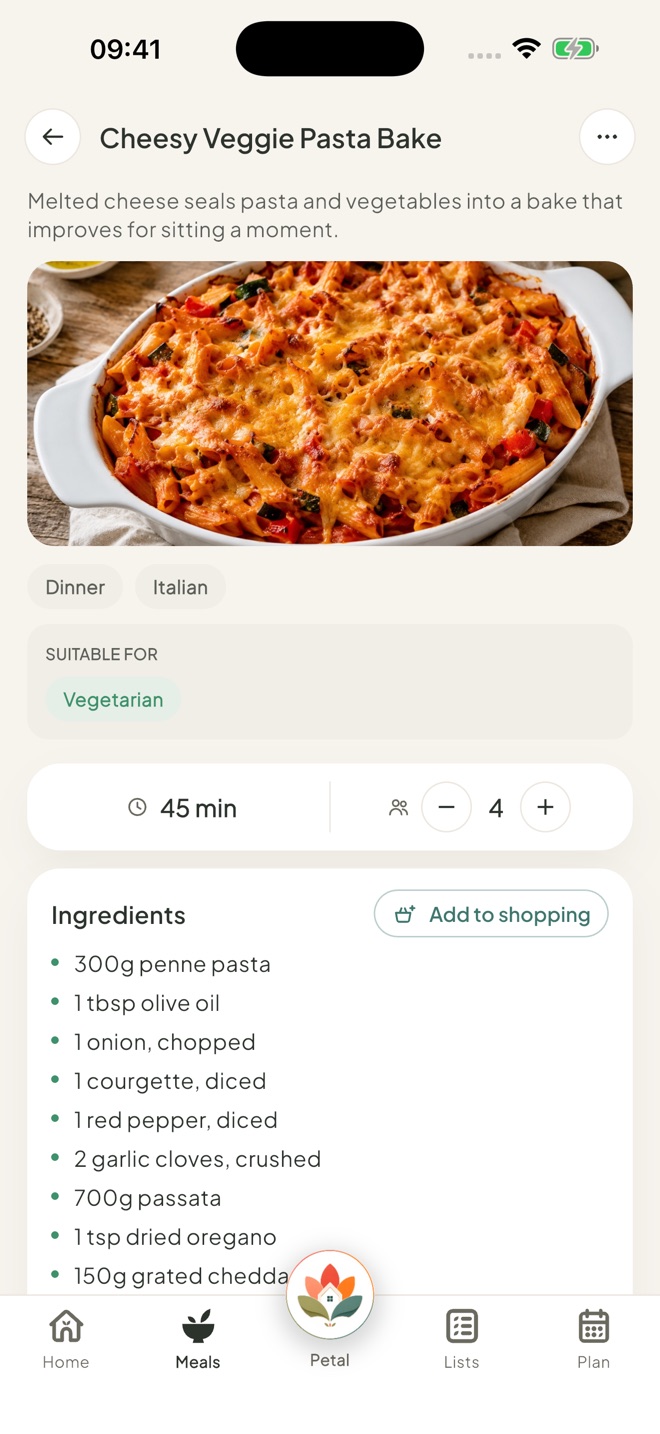
Send ingredients to Groceries
Open a recipe and tap Add to shopping beside Ingredients. Untick anything you already have, then tap the add button, for example Add 6 items.
More options
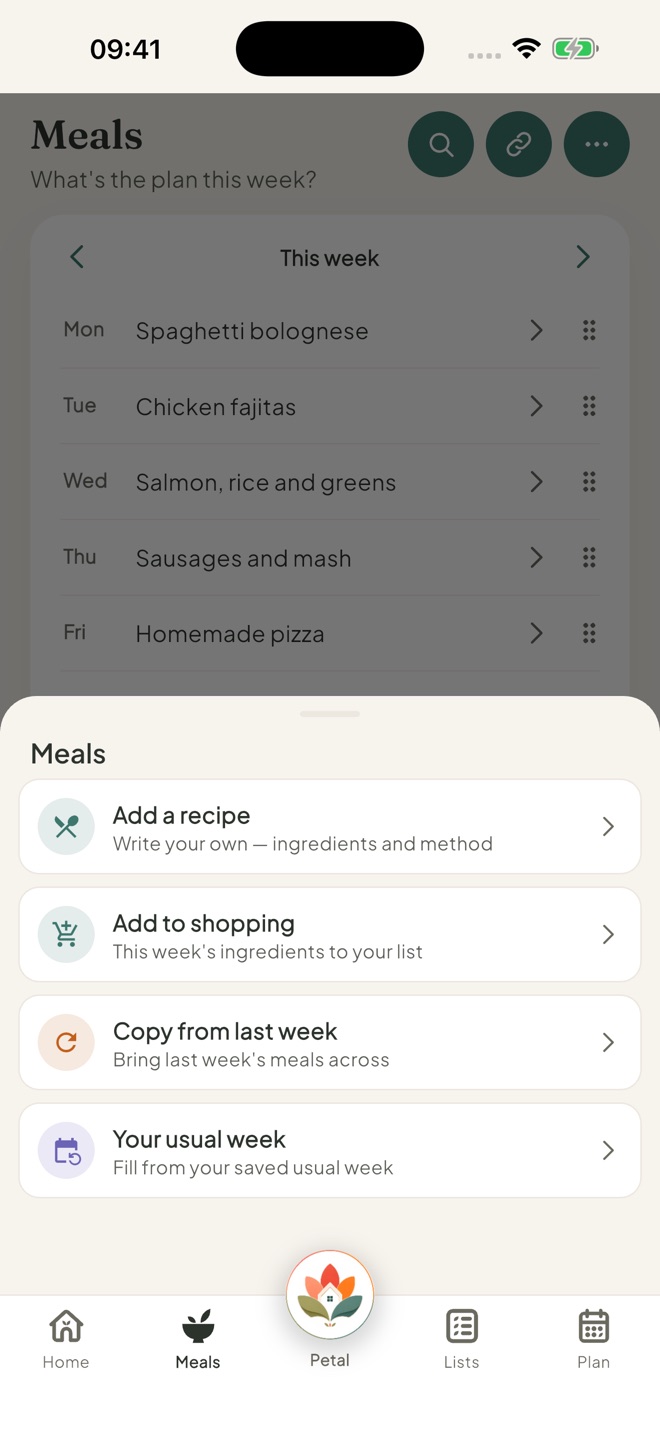
Tap ⋯ on Meals for Add a recipe, Add to shopping (the whole week), Copy from last week and Your usual week. On the free version, the last three show a gold padlock.
Good to know
- On the free version, you can plan one meal a day and save 5 of your own recipes. With Premium, you can plan breakfast, lunch, dinner and more.
- In a day's sheet, Feeling lucky picks a random dinner. It isn't offered for days that have passed.
- Can't add or change meals? An admin may have set Meals to View or Hidden for you.
Keep going
Still stuck?
Email hello@petalhome.app and we'll help.