 Petal Home
Help centre › The Petal button
The Petal button
Use the Petal button in the middle of the bottom bar to add things quickly and reach the rest of Petal Home.
1Step 1 of 4
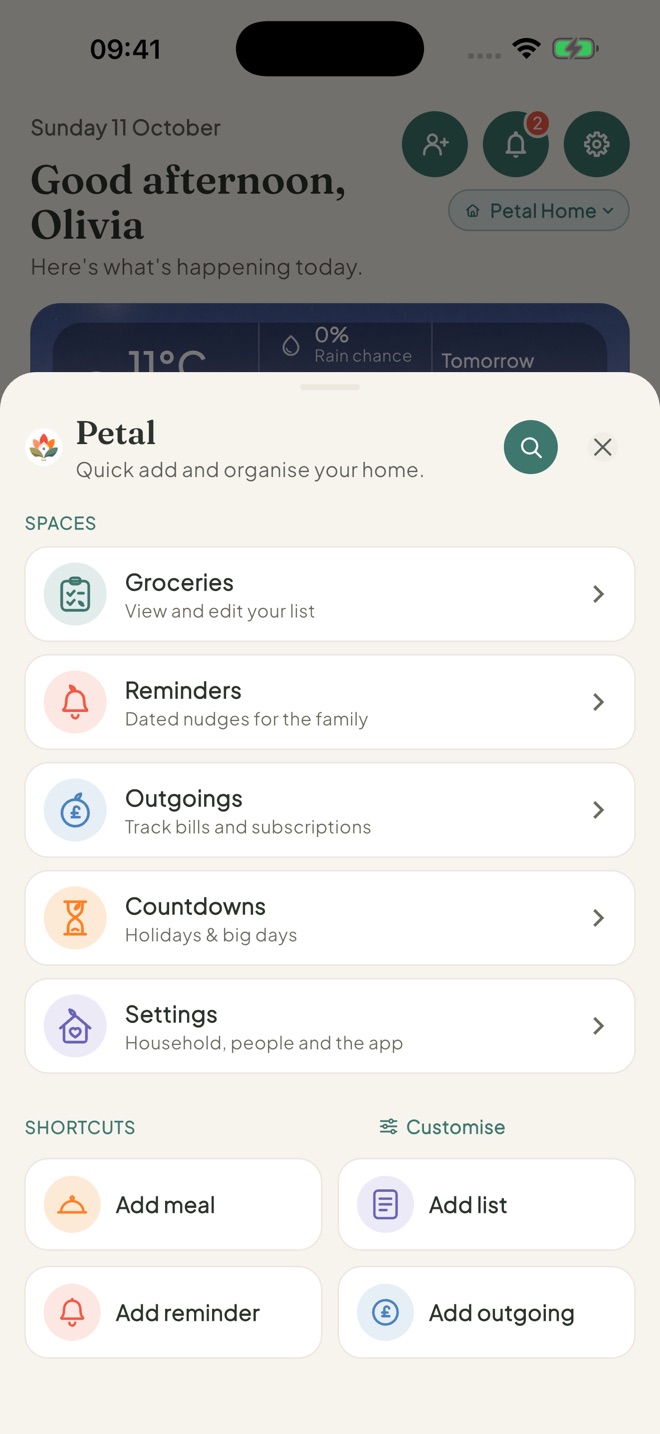
Tap the Petal button
It opens Petal: Quick add and organise your home.
2Step 2 of 4
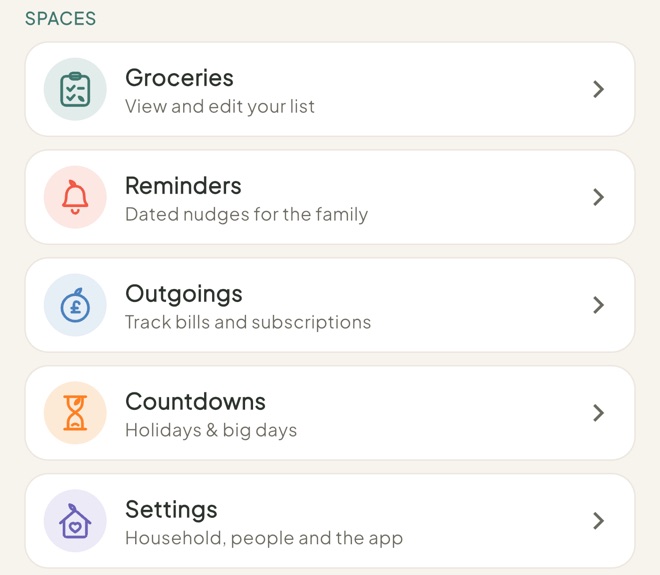
Go to a space
Under Spaces you'll find Groceries, Reminders, Outgoings (Bills in the US), Countdowns and Settings.
3Step 3 of 4
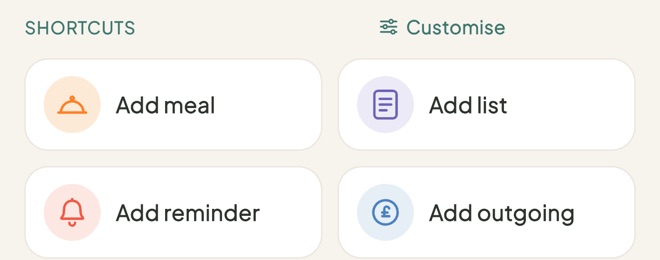
Use a shortcut
Under Shortcuts, tap one to add something straight away, like Add meal, Add list or Add reminder.
Add meal opens Add a recipe. To add a meal straight to a day, use This week on Meals instead.
4Step 4 of 4
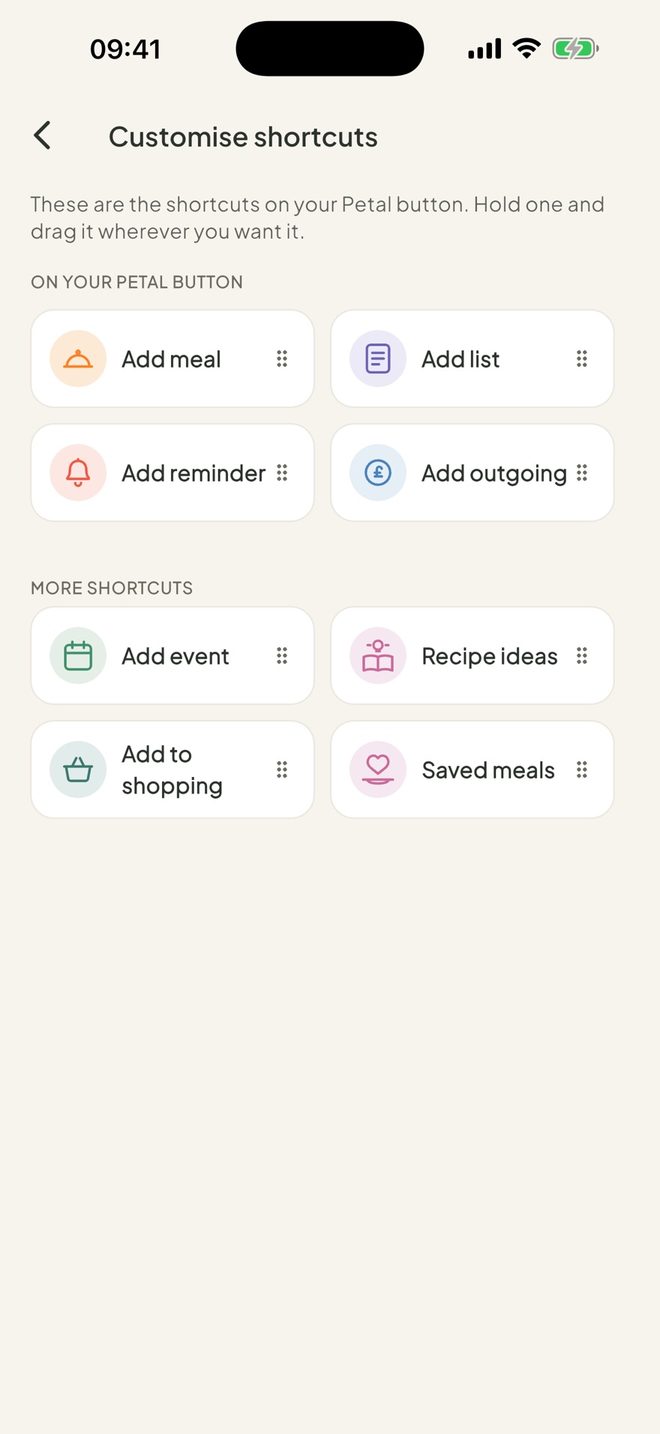
Choose your shortcuts
Tap Customise. Press and hold a shortcut, then drag it between On your Petal button and More shortcuts. You can have up to 4 shortcuts on the button.
Good to know
- More shortcuts include Add event, Recipe ideas, Add to shopping and Recipes.
- The round search button at the top finds lists, reminders, meals, recipes, Outgoings, countdowns, plans and household info.
- If an admin has turned an area off for a child, its tile stays but is locked.
Keep going
Still stuck?
Email hello@petalhome.app and we'll help.