 Petal Home
Help centre › Belong to more than one household
Belong to more than one household
You can be part of more than one household, for example your own home and your grandparents', and switch between them.
1Step 1 of 4
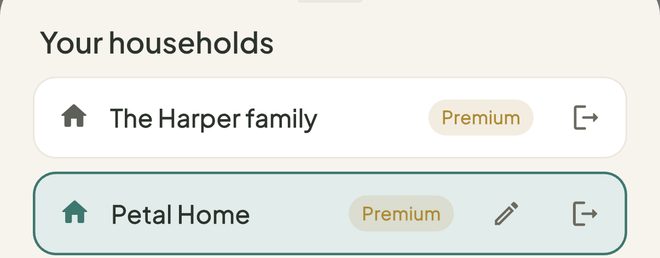
Open Your households
On Home, tap the pill with your household's name. Or go to Settings, then Your households.
2Step 2 of 4
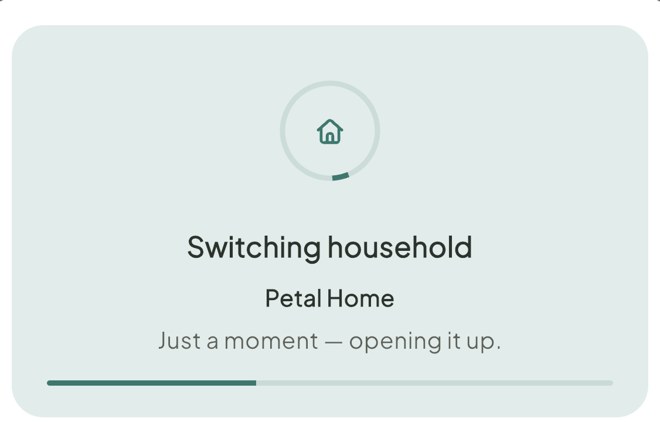
Switch household
Tap the household you want. You'll see Switching household while it loads.
3Step 3 of 4
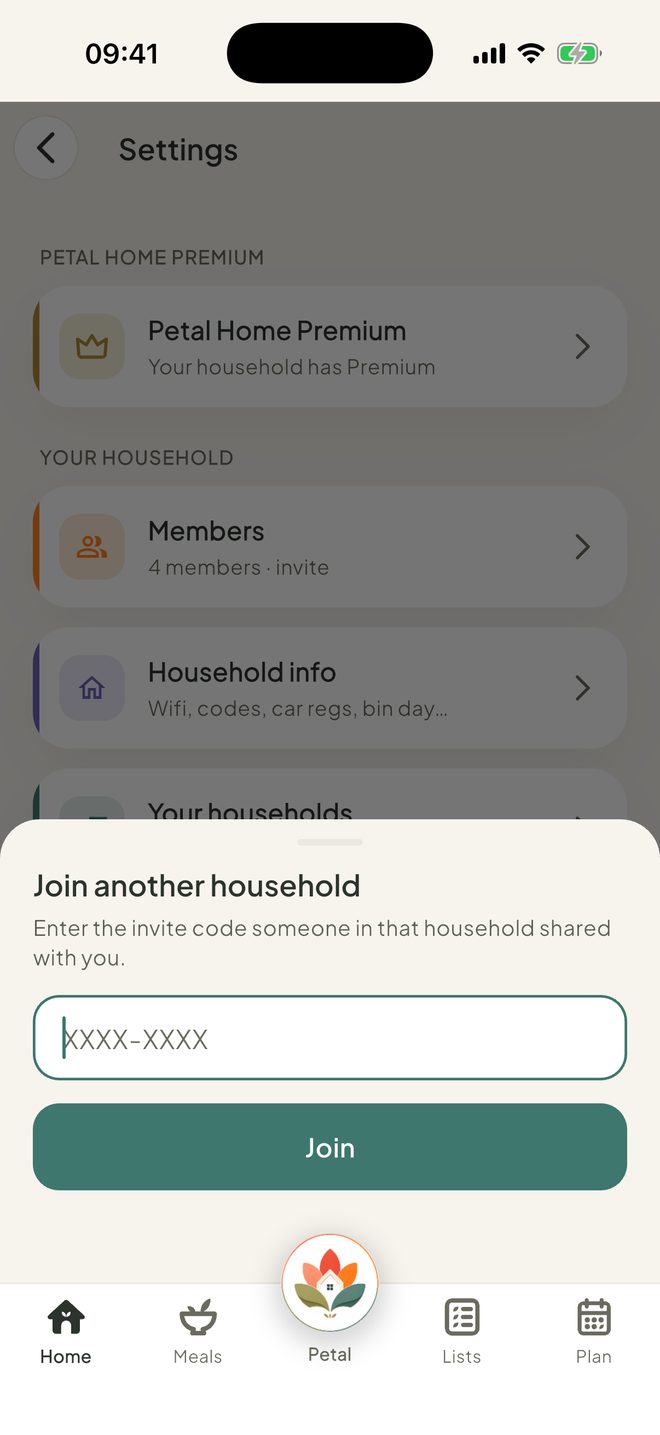
Join another household
Tap Join another household, type the invite code someone in that household shared with you, then tap Join. An admin in that household needs to accept you first.
Everything in your current household stays exactly as it is.
4Step 4 of 4
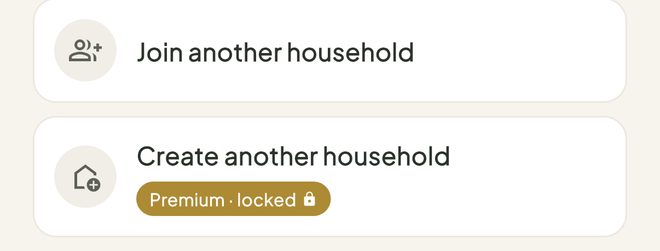
Create another household
Tap Create another household, give it a name, then tap Create. You'll switch straight into it.
Good to know
- Joining a household is always free. If you're already in a household, setting up another one needs your own Premium plan.
- You can be part of up to 5 households, and each household can have up to 12 people with a login.
- To leave a household, tap the leave button on its row. You'll be told exactly what stays and what goes before you confirm, and you can tap Download my data first.
- If you're the last admin, someone else becomes admin automatically. If you're the last person, you're asked to close the household.
- A household you've asked to join shows "awaiting approval", with a Cancel request button.
- On the free version, Create another household shows Premium and a padlock. Joining is always free. An admin can rename a household with the pencil.
Keep going
Still stuck?
Email hello@petalhome.app and we'll help.