 Petal Home
Help centre › Notifications
Notifications
Choose when Petal Home reminds you, and what to check if notifications aren't arriving.
Open Notifications
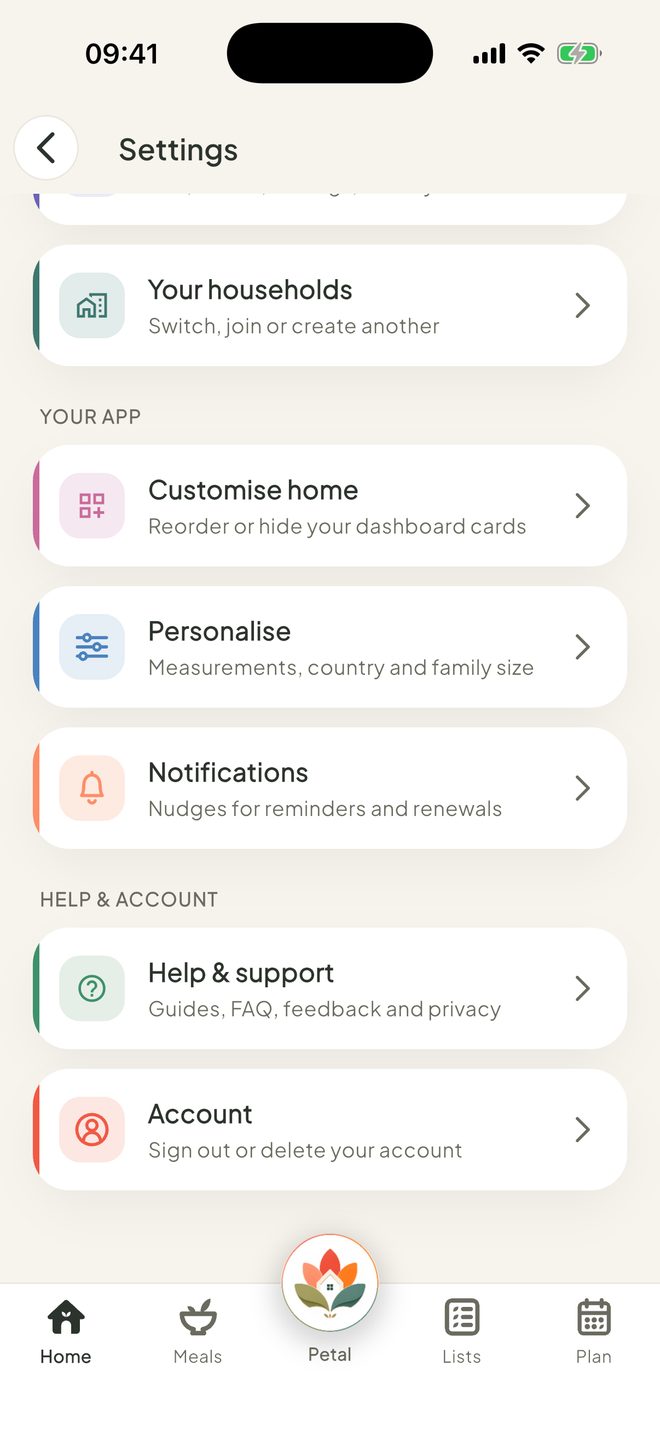
On Home, tap the round Settings button at the top right. Or tap the Petal button in the middle of the bottom bar, then Settings. Under Your app, tap Notifications.
Allow nudges
Make sure Allow nudges is on.
Choose your times
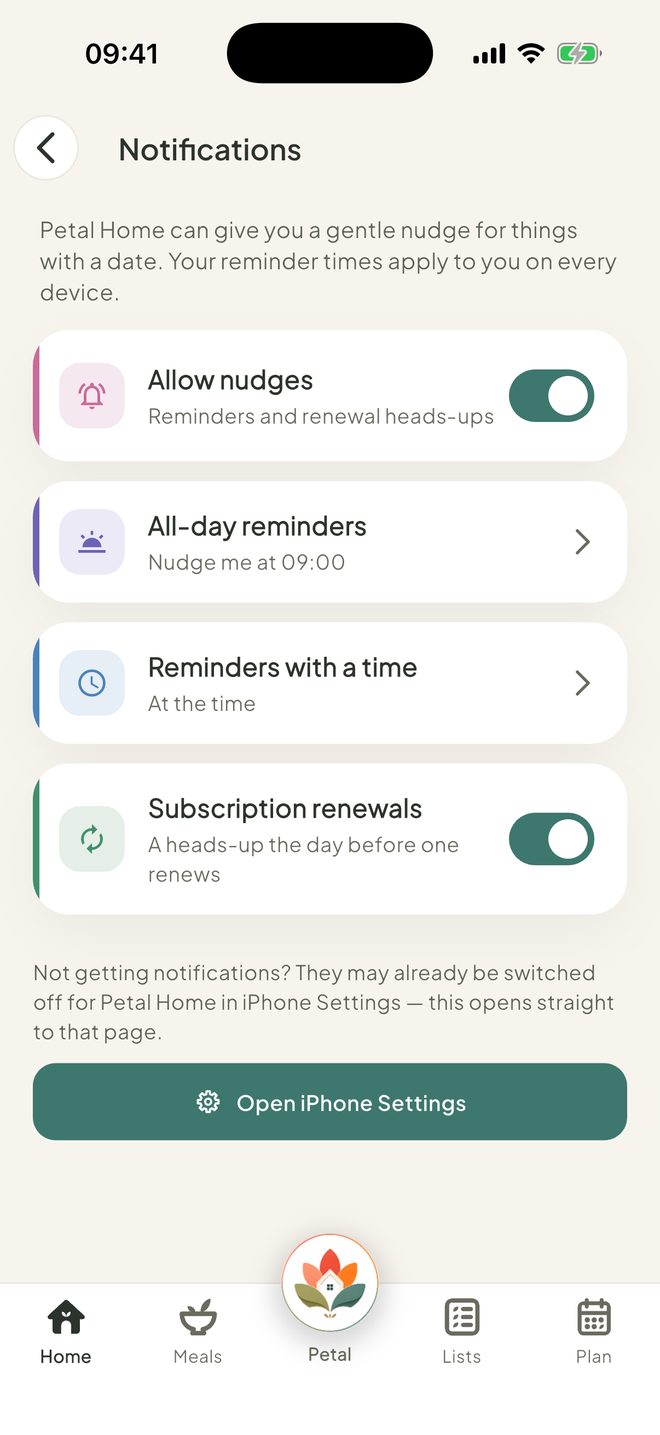
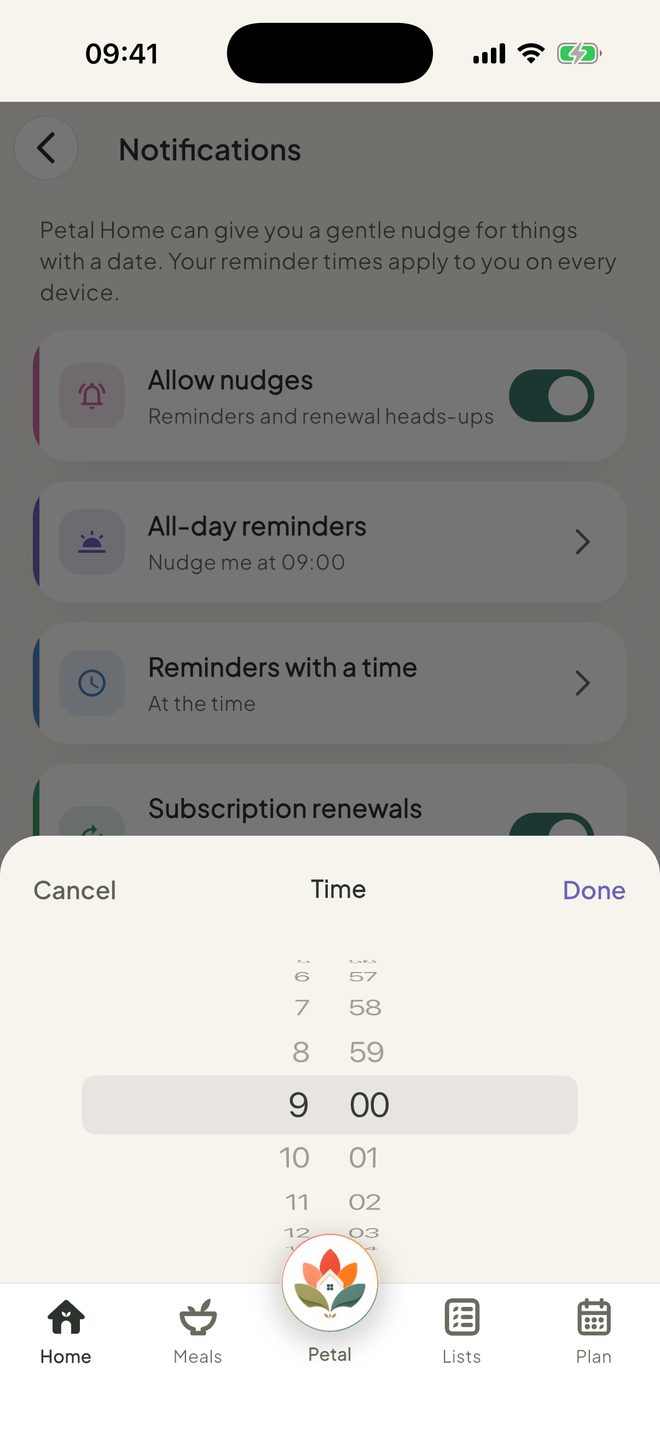
Use All-day reminders to choose when you're nudged about them. It starts at 9:00 am. Under Reminders with a time, tap Notify me and choose At the time, 5, 10, 15 or 30 minutes before, or 1 hour before. These times only show while Allow nudges is on.
Not getting nudges?
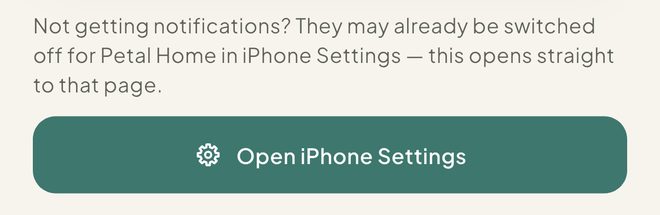
Notifications may be switched off for Petal Home in your phone's settings. Tap Open iPhone Settings (Open iPad Settings on iPad, or Open settings on Android) and turn them on.
Good to know
- Your reminder times apply to you on every device. Allow nudges is for each phone, so check it on every phone you use.
- Reminders for a plan on the calendar are set on the plan itself. See Add a plan to the calendar.
- A heads-up the day before a subscription renews is part of Premium.
Keep going
Still stuck?
Email hello@petalhome.app and we'll help.