 Petal Home
Help centre › Recipes and groups
Recipes and groups
Recipes is where your saved recipes live. Star the ones you make most and sort them into groups.
Open Recipes
On Meals, tap See all on the Recipes card. Or, on Recipe ideas, tap Recipes at the top.
The Recipes card is always on Meals, with a New recipe card to add your first one.
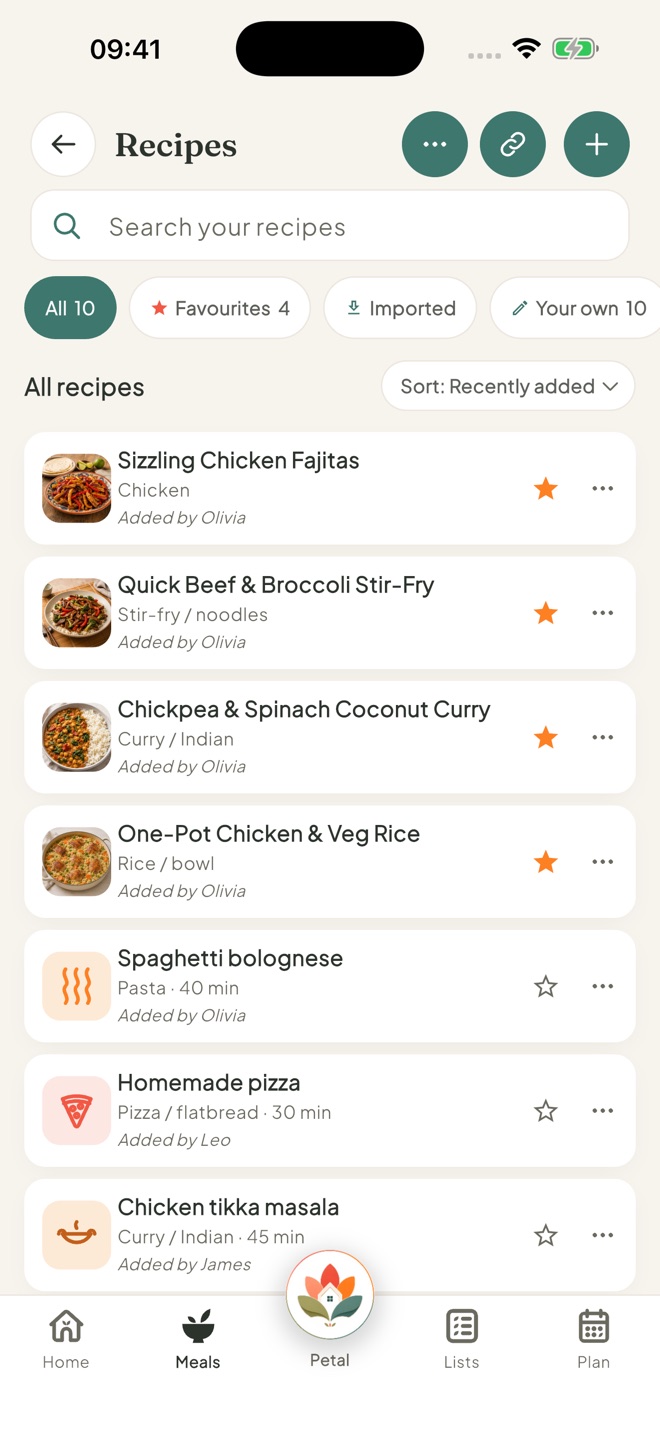
Star your favourites
Tap the star on a recipe. Starred recipes show under Favourites, ready to drag onto a day.
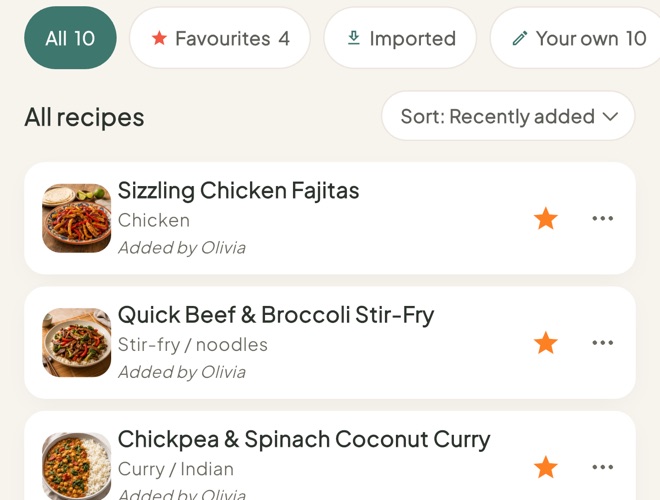
Make a group
Tap + New in the row of chips, give the group a name, such as Quick dinners, then tap Create.
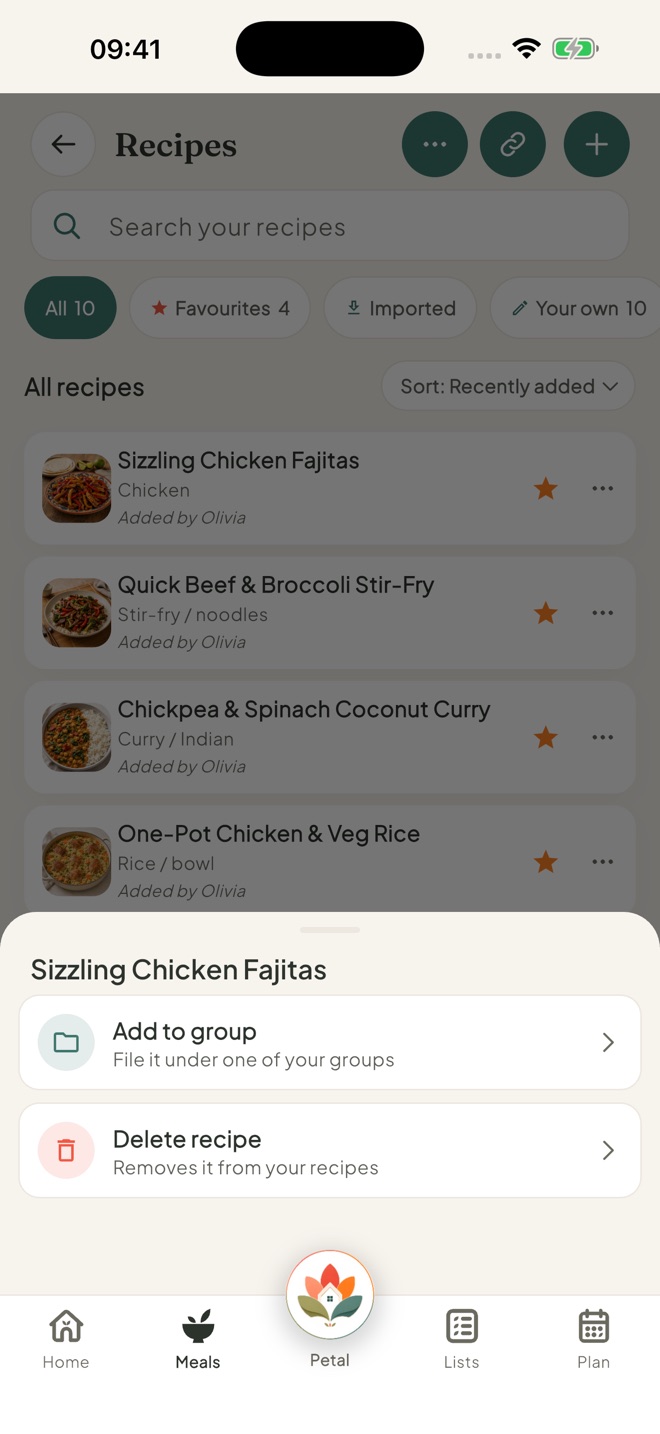
Put a recipe in a group
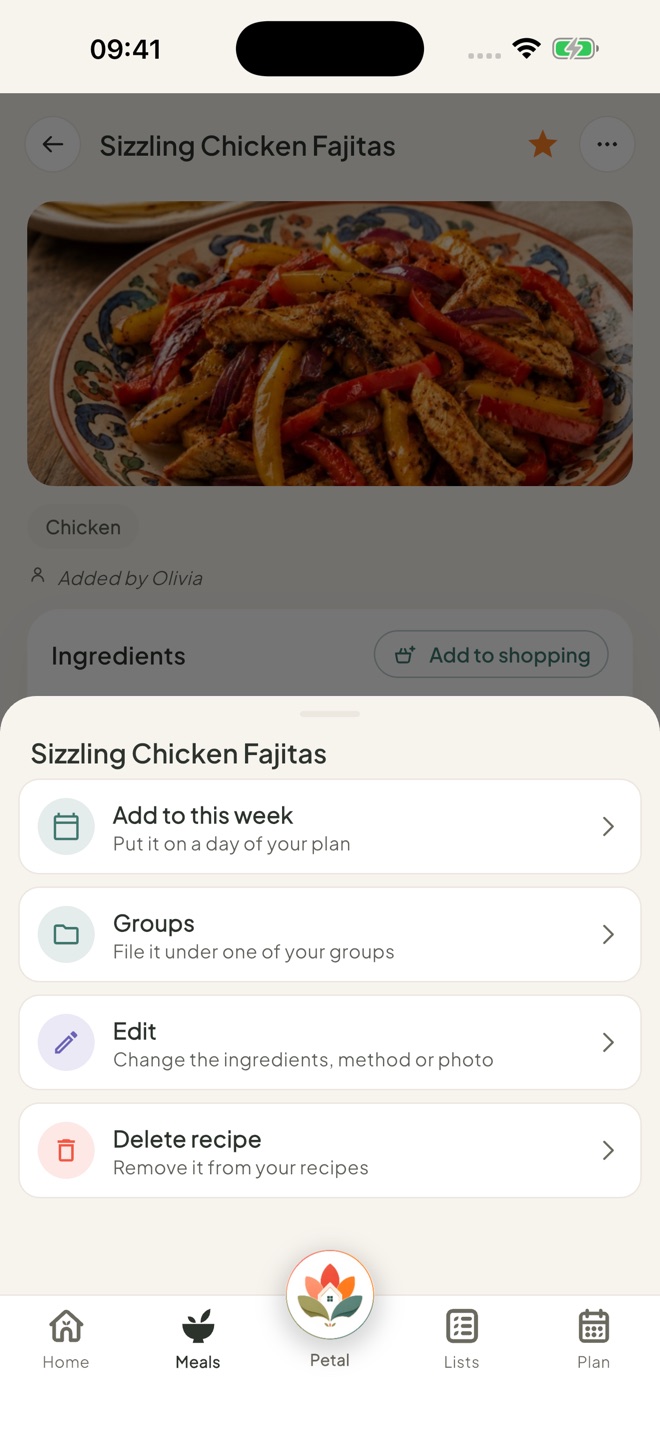
Tap ⋯ on a recipe in the list, then Add to group. Inside an open recipe, ⋯ shows Groups instead. Tick the groups you want, then tap Done.
Edit or delete a recipe
Open the recipe and tap ⋯, then Edit or Delete recipe.
A recipe from Recipe ideas stays the same for everyone. Tap ⋯, then Edit, then Duplicate & edit to make your own copy and change it. A copy counts towards your 5 recipes.
Good to know
- Stars are your own. Everyone in the household can star their own favourites.
- On the free version, you can save 5 recipes and make 3 groups. With Premium, there's no limit.
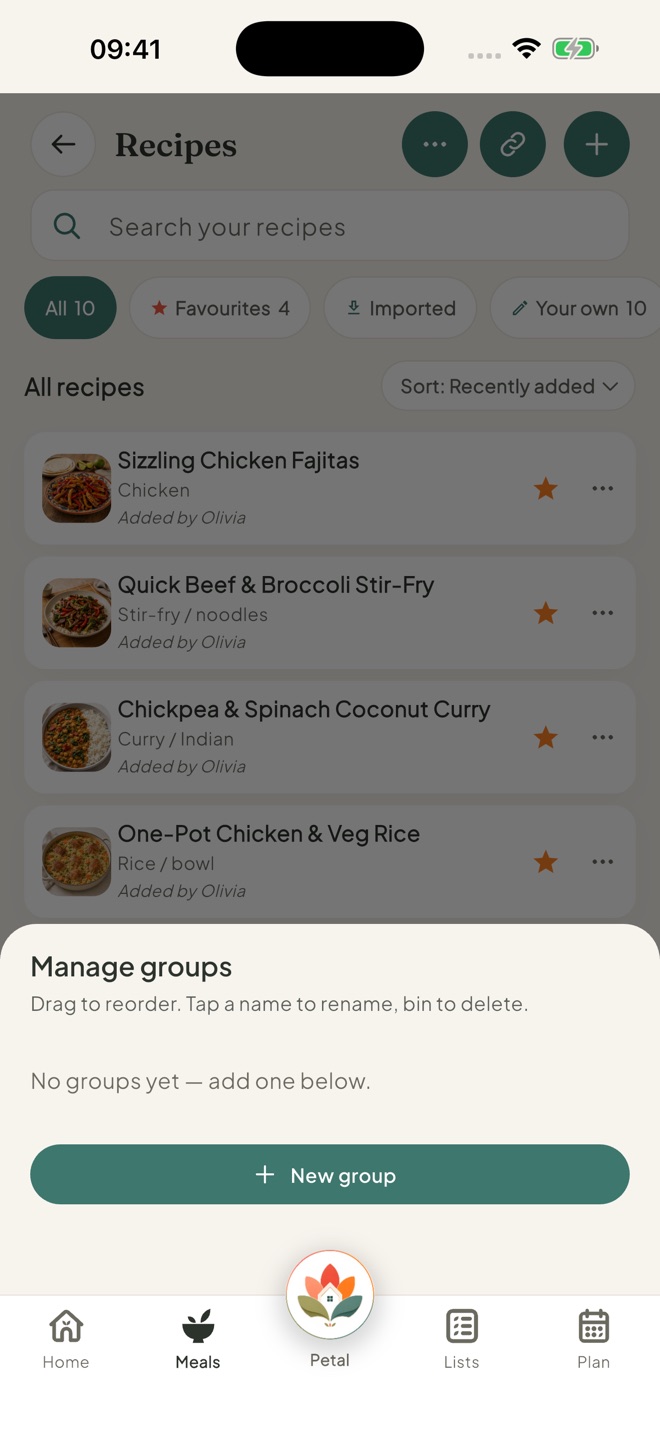
- To rename, reorder or delete groups, tap ⋯ at the top of Recipes, then Manage groups. You can also press and hold a group to rename or delete it. Swipe left on a recipe to delete it.
- The chips are All, Favourites, Imported, Your own and By type, then your groups. Sort by Recently added, A–Z or My order.
- A child set to View can star recipes, but can't edit, delete or group them.
Keep going
Still stuck?
Email hello@petalhome.app and we'll help.