 Petal Home
Help centre › The weather and forecast
The weather and forecast
See your local weather on Home and on the calendar, and open the full forecast when you're planning ahead.
1Step 1 of 4
Turn on the weather
On Home, tap Show today's weather and allow Petal Home to use your location when your phone asks.
2Step 2 of 4
Open the forecast
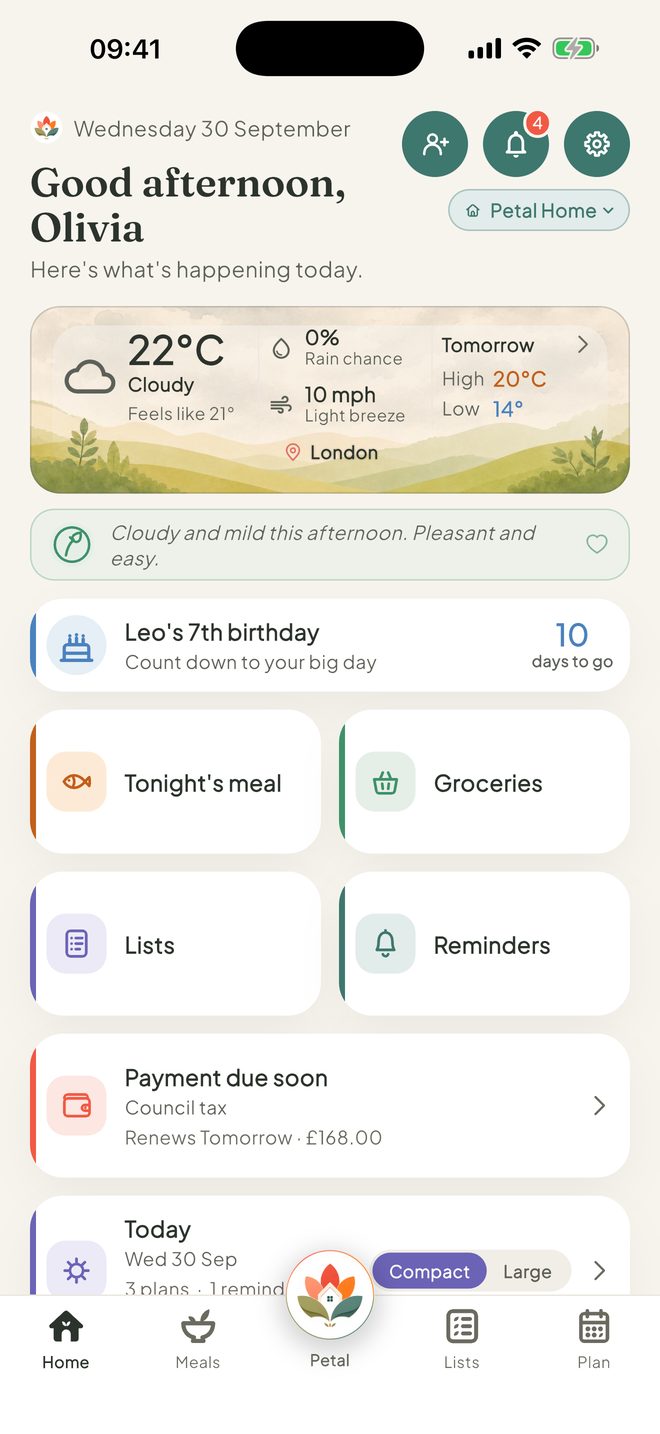
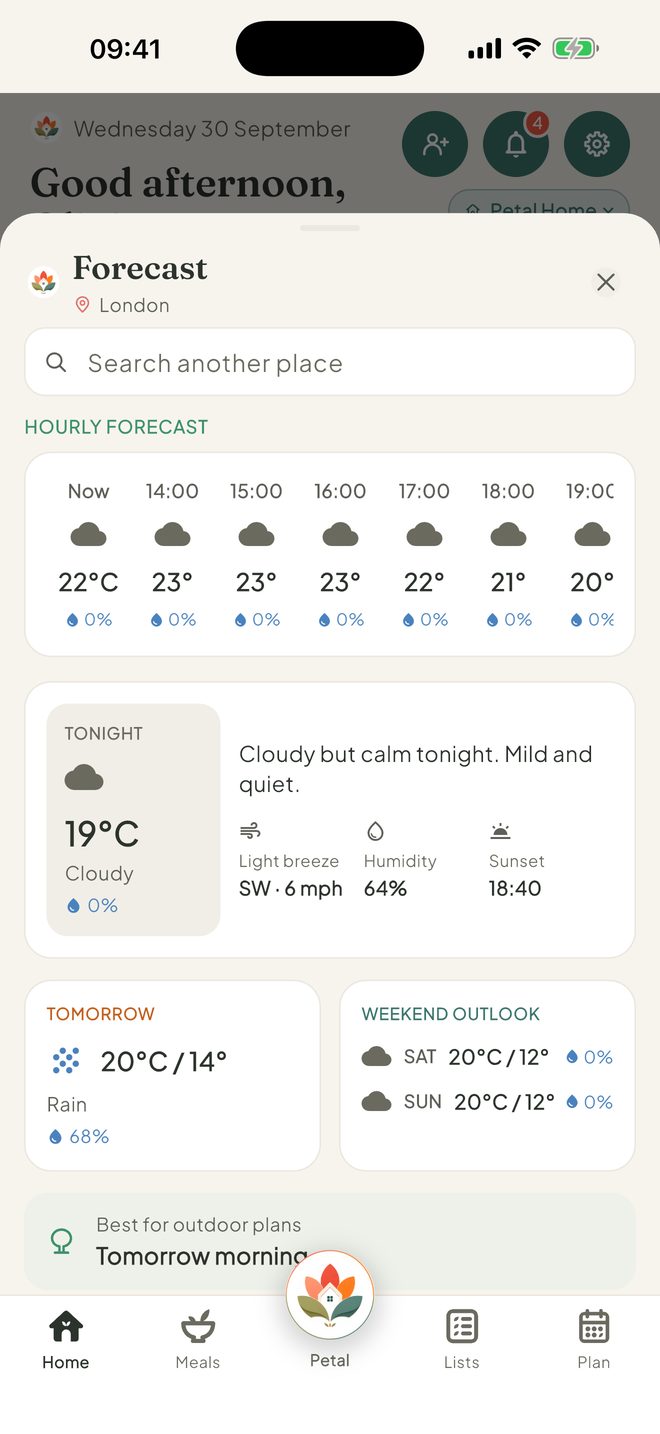
Tap the weather card on Home. The Forecast shows the hourly forecast, tonight, tomorrow, the weekend, the best time for outdoor plans and the next 7 days.
3Step 3 of 4
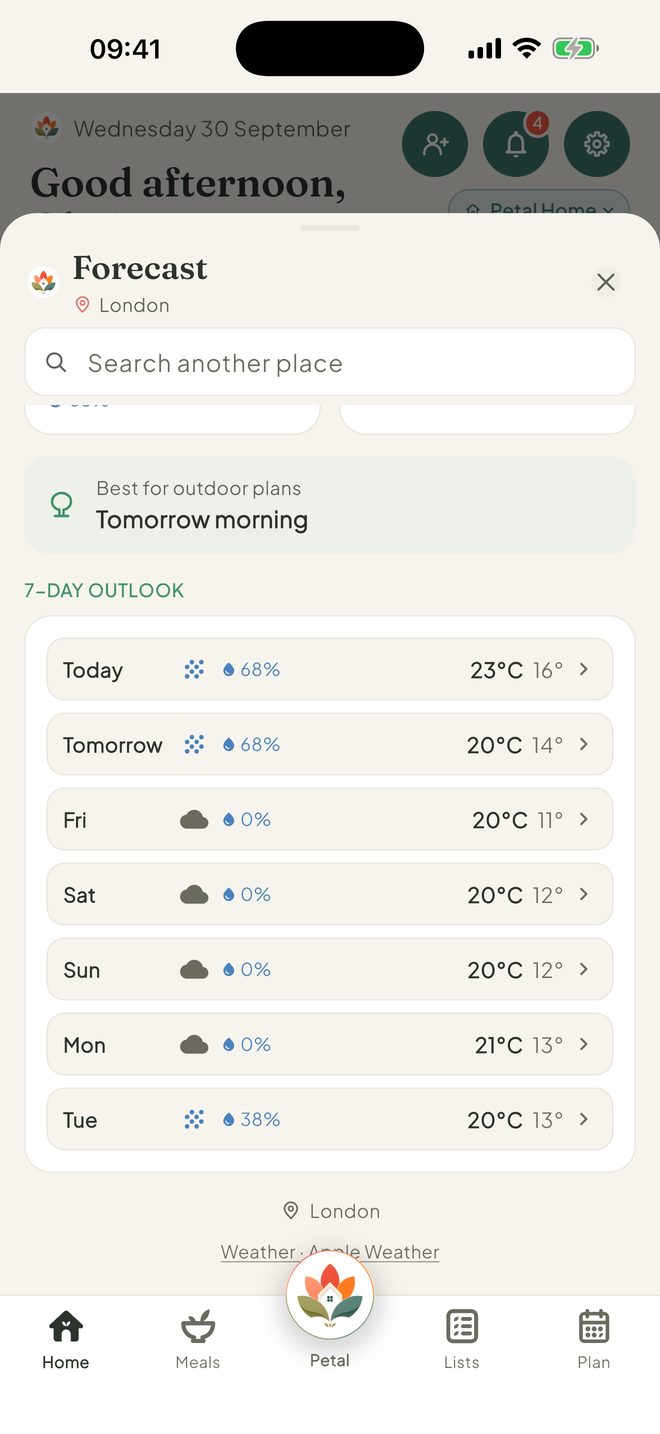
Check somewhere else
In the Forecast, type a town into Search another place. Tap the place name at the top to go back to your local forecast.
4Step 4 of 4
Weather on the calendar
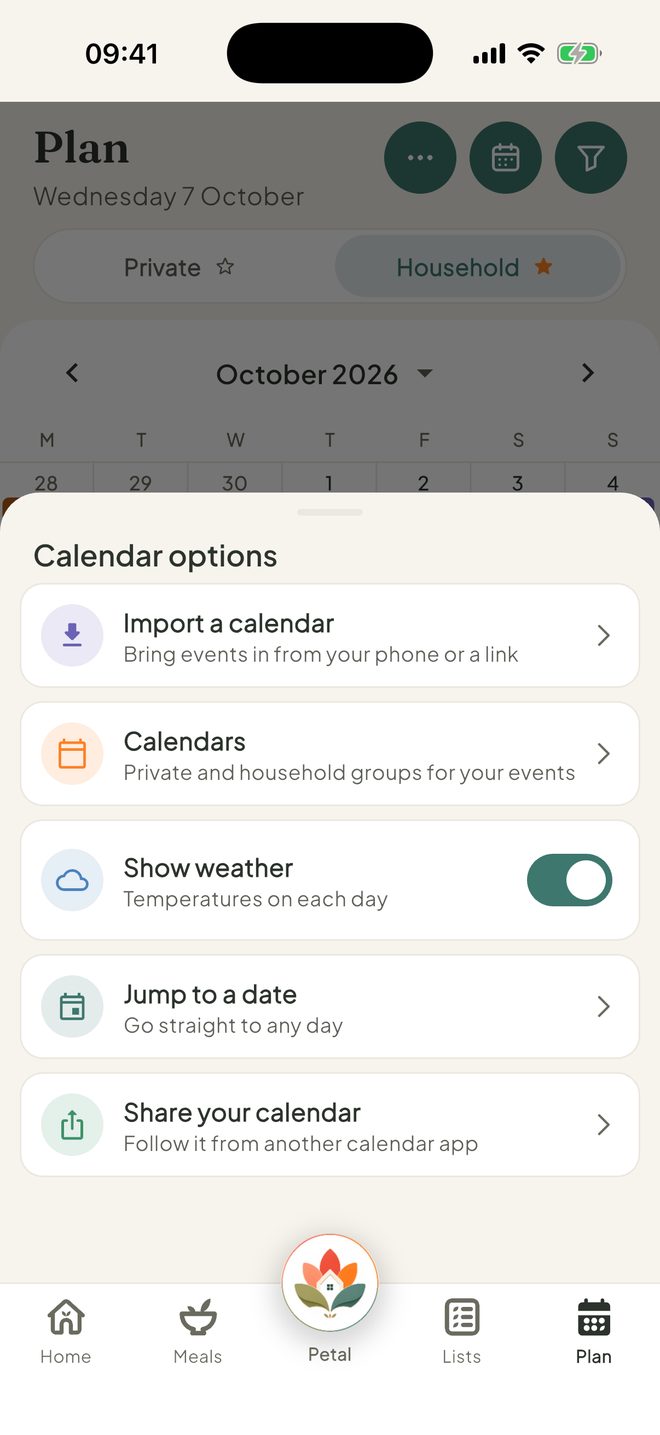
On Plan, tap ⋯, then switch Show weather on or off for temperatures on each day.
Good to know
- The weather comes from Apple Weather, and it's free.
- Your location is only used to show your weather. If it can't find you, Petal says it needs to know where you are and offers Open Settings or Try again.
- Full forecast is its own card on Home. It stays if you take the weather picture off.
- To remove the weather from Home, press and hold on Home and tap the small cross on the weather card. Add it back any time from Add widget.
Keep going
Still stuck?
Email hello@petalhome.app and we'll help.